Help

How can we help?

Guides to every feature of flowNotes – for Mac, iPad and iPhone. The app shows the same articles (in German) under the question mark at the bottom of the sidebar.

Getting started

Setting up flowNotes

Choose a folder, set a passphrase, keep your recovery key safe.

  1. Choose a folder: On first launch, pick a folder in your cloud storage, e.g. iCloud Drive, Google Drive, OneDrive, Dropbox or Nextcloud. On iPad and iPhone you pick it in the Files app. Your provider's sync client moves the files; flowNotes needs no account of its own.
  2. Set a passphrase: It encrypts your notebooks. Choose a long sentence you can remember. Nobody but you knows it, not even us.
  3. Keep your recovery key: flowNotes shows a key of 8 groups of four once. Print it or store it in your password manager, separately from the passphrase. It is the only way back if you forget the passphrase.

flowNotes then creates a first notebook and you can start writing.

Connecting more devices

Pick the same folder on Mac, iPad and iPhone and unlock with your passphrase.

Install flowNotes on the other device and choose the same folder in your cloud storage. flowNotes finds the existing vault and asks for your passphrase.

  • On iPad and iPhone, use “Choose folder …” in the Files app. flowNotes keeps access across restarts.
  • The first time, the device loads the full state, afterwards only changes. Large notebooks can take a while, especially if the cloud client still has to download files.
  • Set up Touch ID or Face ID on each device separately (see Touch ID and Face ID).

Notebooks, sections and pages

How flowNotes is organised – like a binder with tabs.

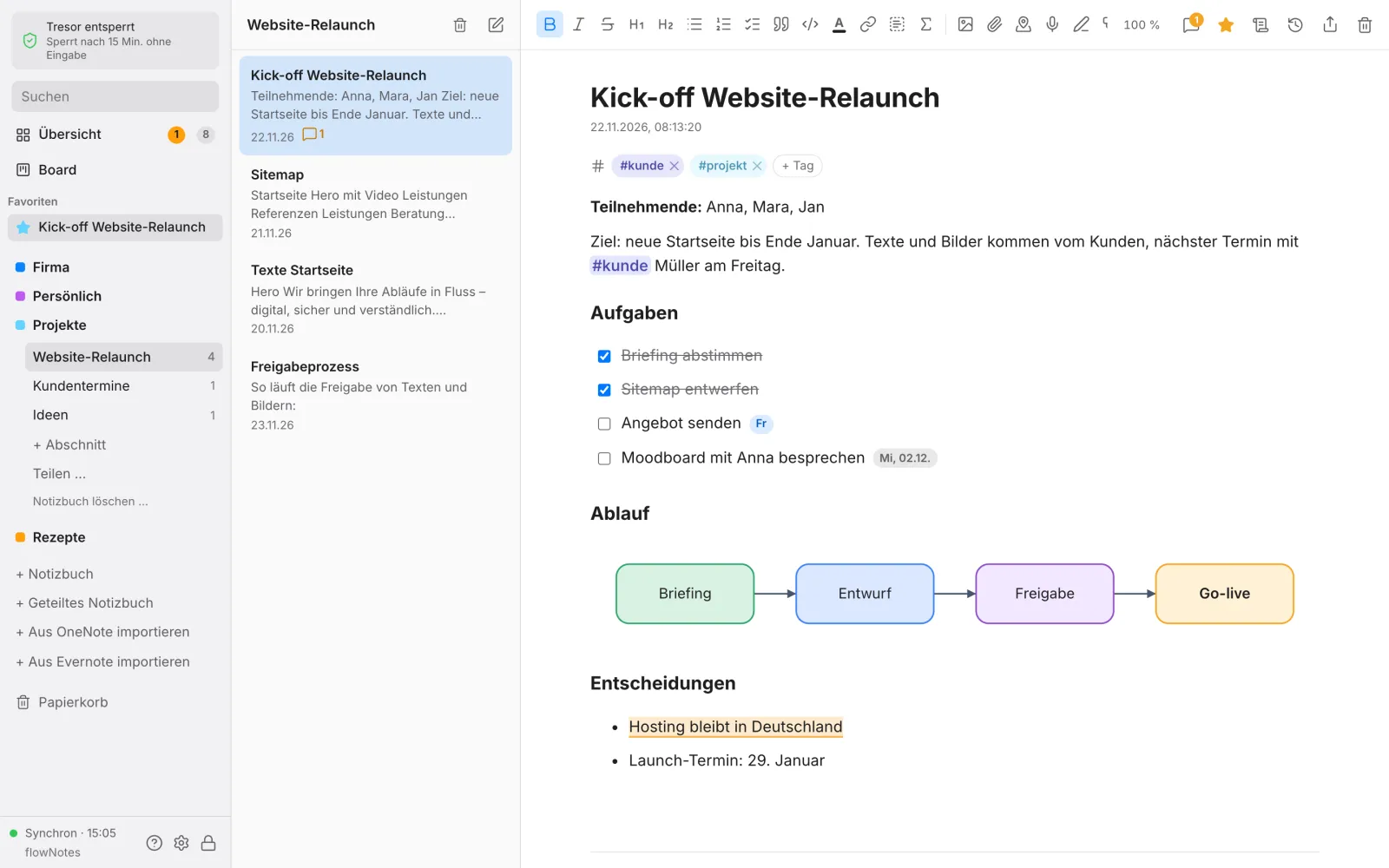
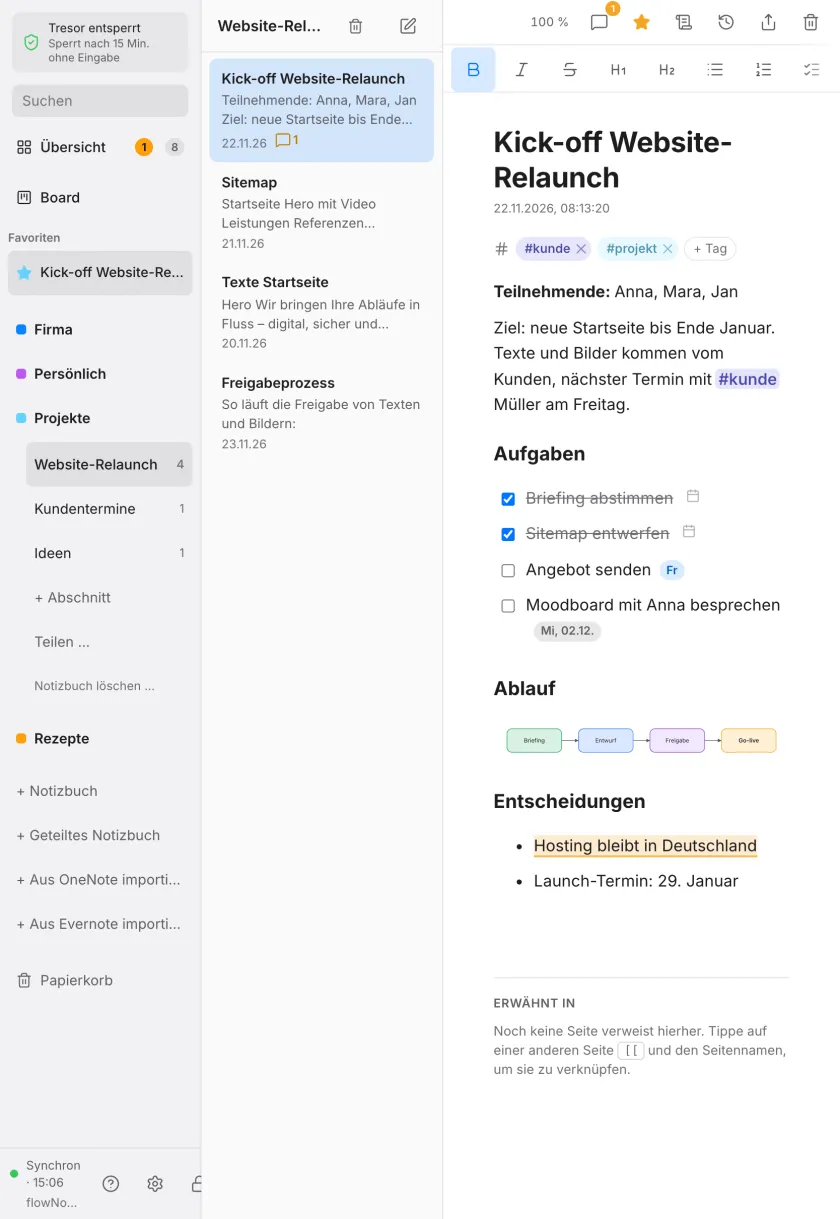
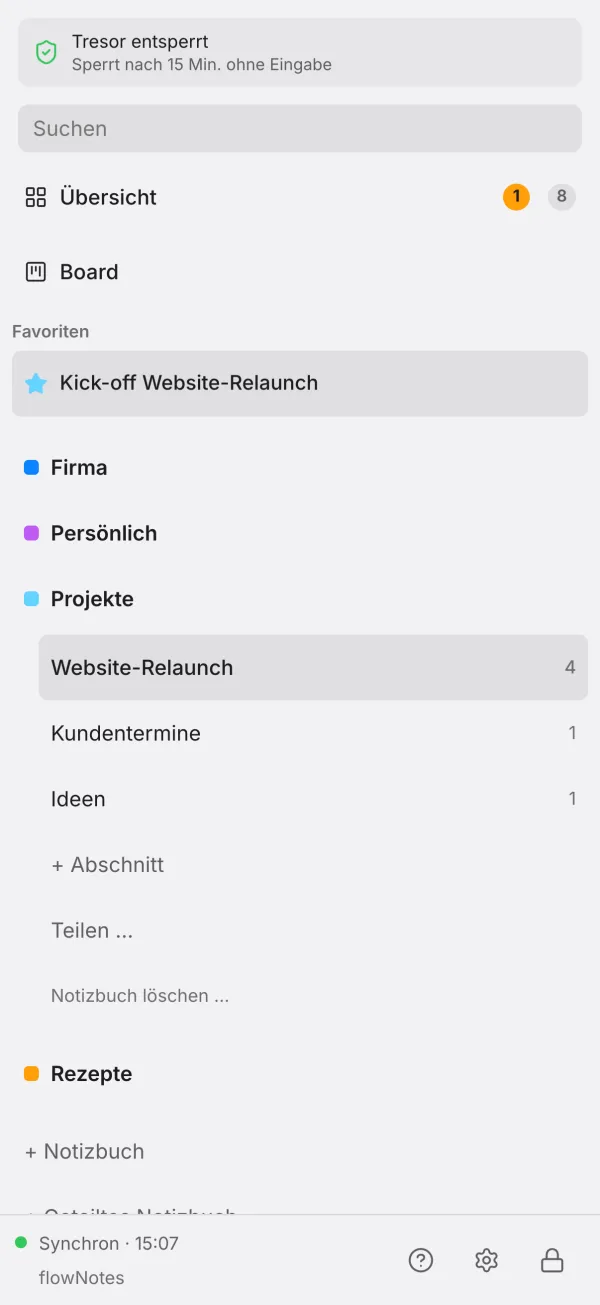
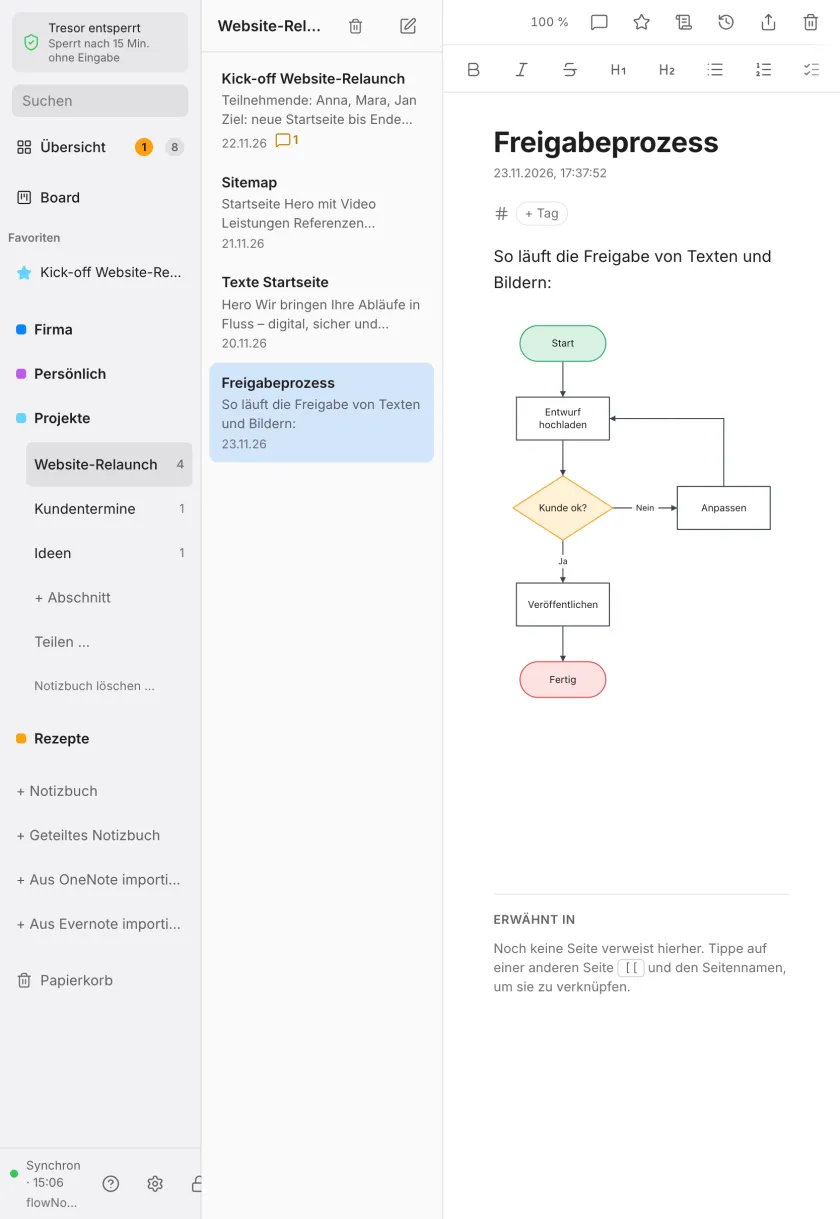
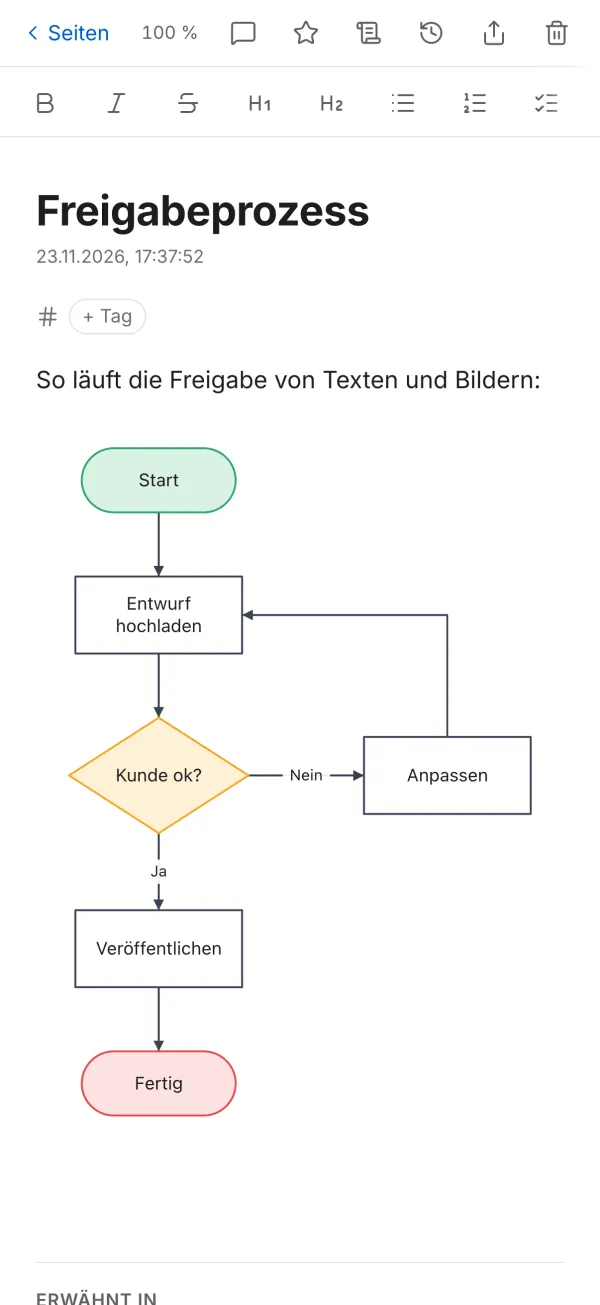
Notebooks, sections and pages – side by side on Mac and iPad, one after another on iPhone.
  • Notebooks are listed in the left sidebar, each with its own colour. “+ Notebook” creates one.
  • Sections divide a notebook, like tabs. “+ Section” adds one.
  • Pages are in the middle column. The pencil above the page list creates a page, the bin next to it deletes the selected one. Pages can be indented as subpages.
  • Favourites: The star at the top right bookmarks a page; it then appears under “Favourites” in the sidebar.
  • The Overview shows open tasks, recently edited pages, favourites and statistics across all notebooks.

The app interface is currently in German; the names above are the English equivalents.

Writing and layout

Formatting text

Toolbar, typing shortcuts and keyboard shortcuts in the editor.

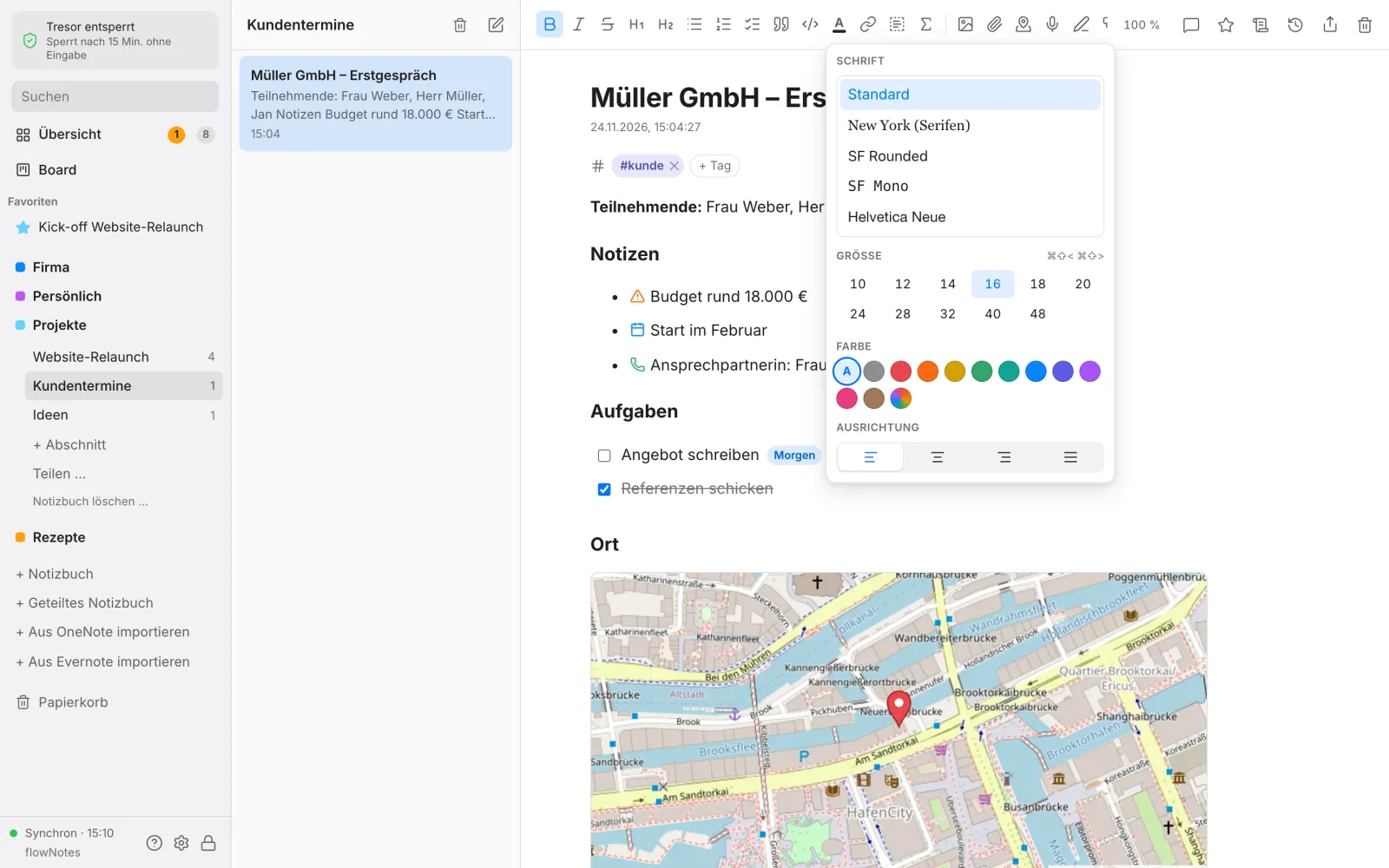
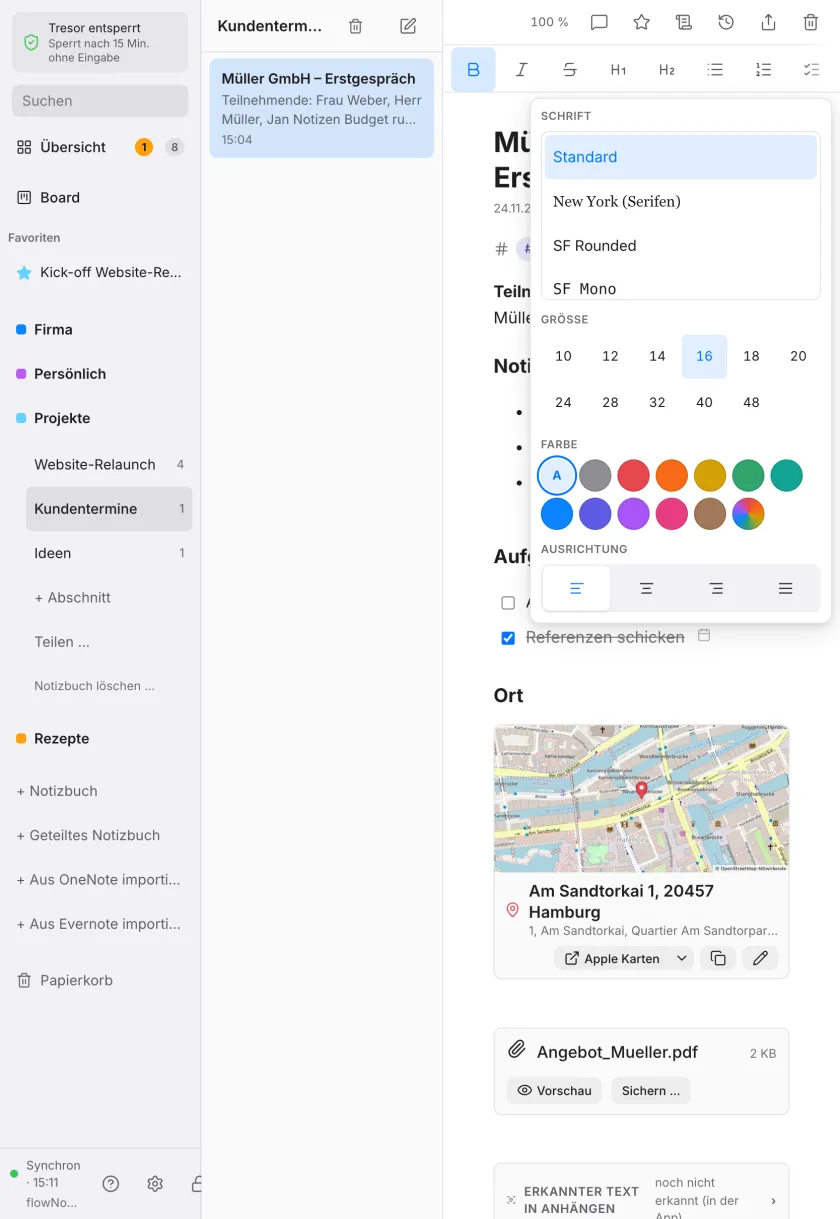
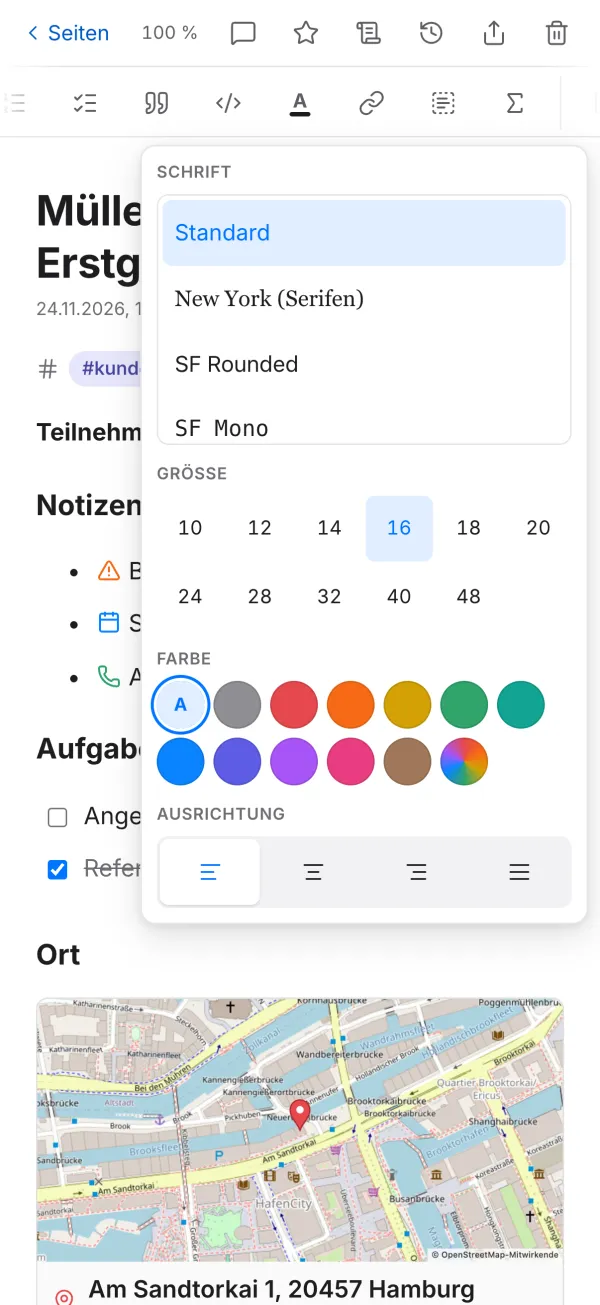
The “Text” menu with font, size, colour and alignment; pictograms in orange, blue and green in the list.

The toolbar above the page has bold, italic, strikethrough, heading and subheading, lists, checklist, quote, code, “Text” (font, size, colour, alignment), link, text box, formula, image, file, map, audio note, drawing, diagram, table, pictograms and date/time. On narrow screens you can swipe it sideways.

Font, size, colour: Select text and open the “A” in the toolbar. There you pick the font (e.g. New York, Avenir Next, SF Mono or Bradley Hand), the size from 10 to 48, the colour and the alignment – the menu stays open until you click elsewhere. “Alles auf Standard” resets everything. ⌘⇧> and ⌘⇧< make text bigger or smaller. When pasting from websites or Word, their fonts and sizes are left out.

Alignment: Paragraphs and headings can be left-aligned, centred, right-aligned or justified – in the toolbar’s “A” menu or with ⌘⇧L, ⌘⇧E, ⌘⇧R and ⌘⇧J.

Text box: Puts the current paragraph in a frame; “Rahmen” (frame) sets line, colour, corners, shadow and background. Resize it like an image at the four corners and the right edge, or with 25–100 % and “Auto”. The corners change width and height independently; longer text still makes the box taller. The box stays left-aligned.

Pictograms: The shapes icon next to the calendar opens more than 200 symbols – check mark, cross, warning, arrows, phone, appointment, weather and more. Type a keyword to search (in German, e.g. “haken” for check mark) and press ↩. Pictograms sit in the text like a character, grow with the font size and use the text colour or a colour picked in the menu. To change them later, click the pictogram and choose size or colour in the “A” menu. Markdown and plain-text exports turn them into matching characters (✓, ⚠️, 📞 …).

Date and time: The calendar icon at the end of the toolbar inserts today’s date, the time, both, or the full date (“Montag, 23. November 2026”) as text. It’s quicker with ⌥⇧D (date), ⌥⇧T (time) and ⌥⇧F (date and time). Task due dates, on the other hand, are set with @heute, @morgen and so on.

Typing shortcuts

# / ## Heading / subheading
- or * Bulleted list
1. Numbered list
[ ] Checklist
> Quote
``` Code block
$$a^2$$Formula

Links: ⌘K inserts or edits a link. ⌘-click opens it in your browser.

Tasks and due dates

Checklists with date, time and reminders.

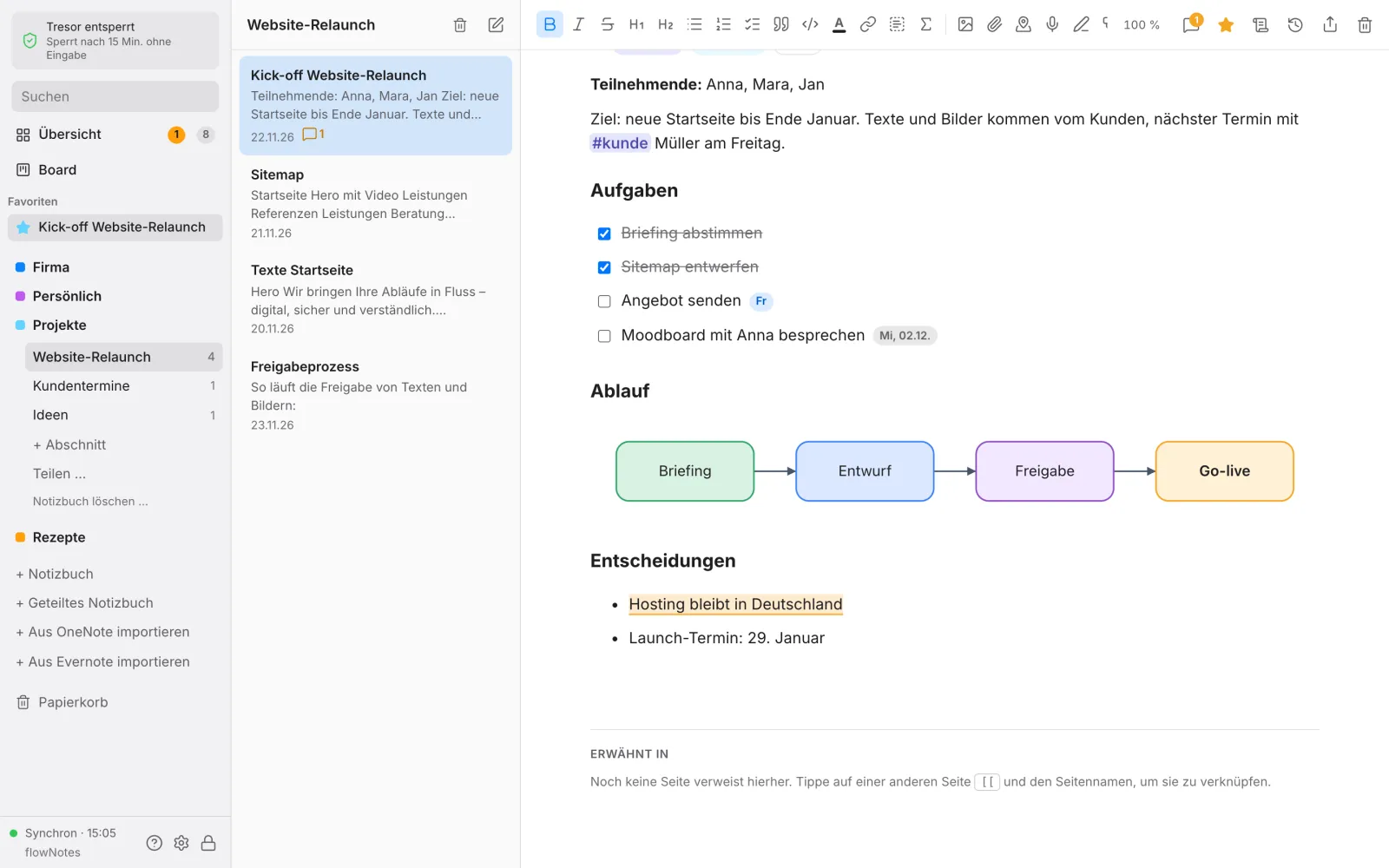
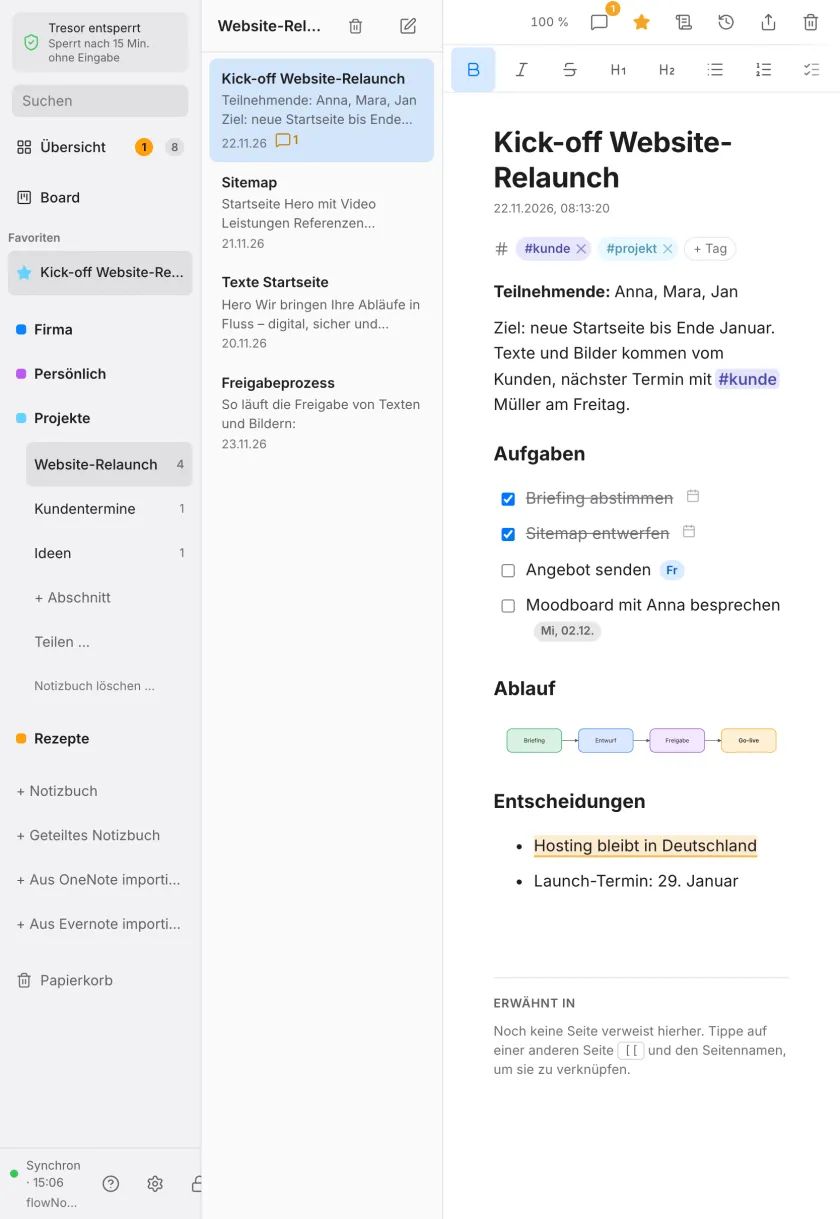
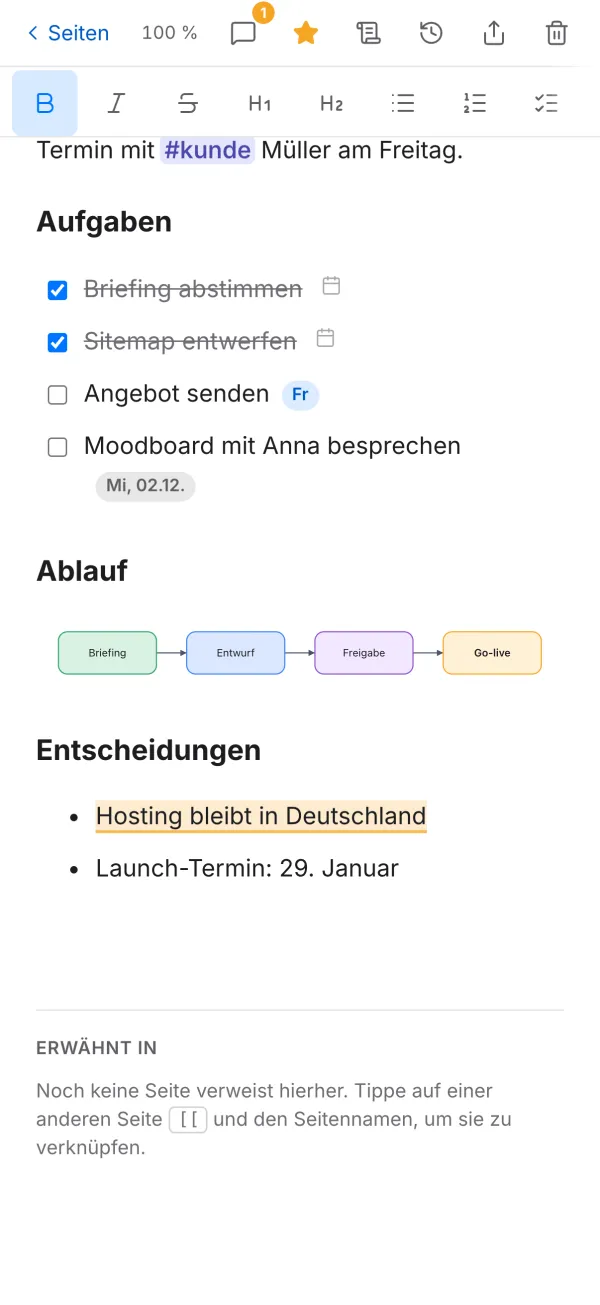
A checklist with completed tasks and due dates such as “Fr” or “Mi, 02.12.”.

Every checklist item is a task. Set a date while typing (the shortcuts use German day names):

@heute, @morgentoday, tomorrow
@frnext Friday (mo, di, mi, do, fr, sa, so)
@24.12.a specific date (day.month.)
@+3in three days
@9:30time

The date appears as a small chip at the end of the line; click it to change it. Open and due tasks from all notebooks are shown in the Overview. Notifications for due tasks are set under Settings › Reminders.

Images, attachments, maps and audio notes

Insert and resize images, attach and preview files, add maps for addresses, record voice notes.

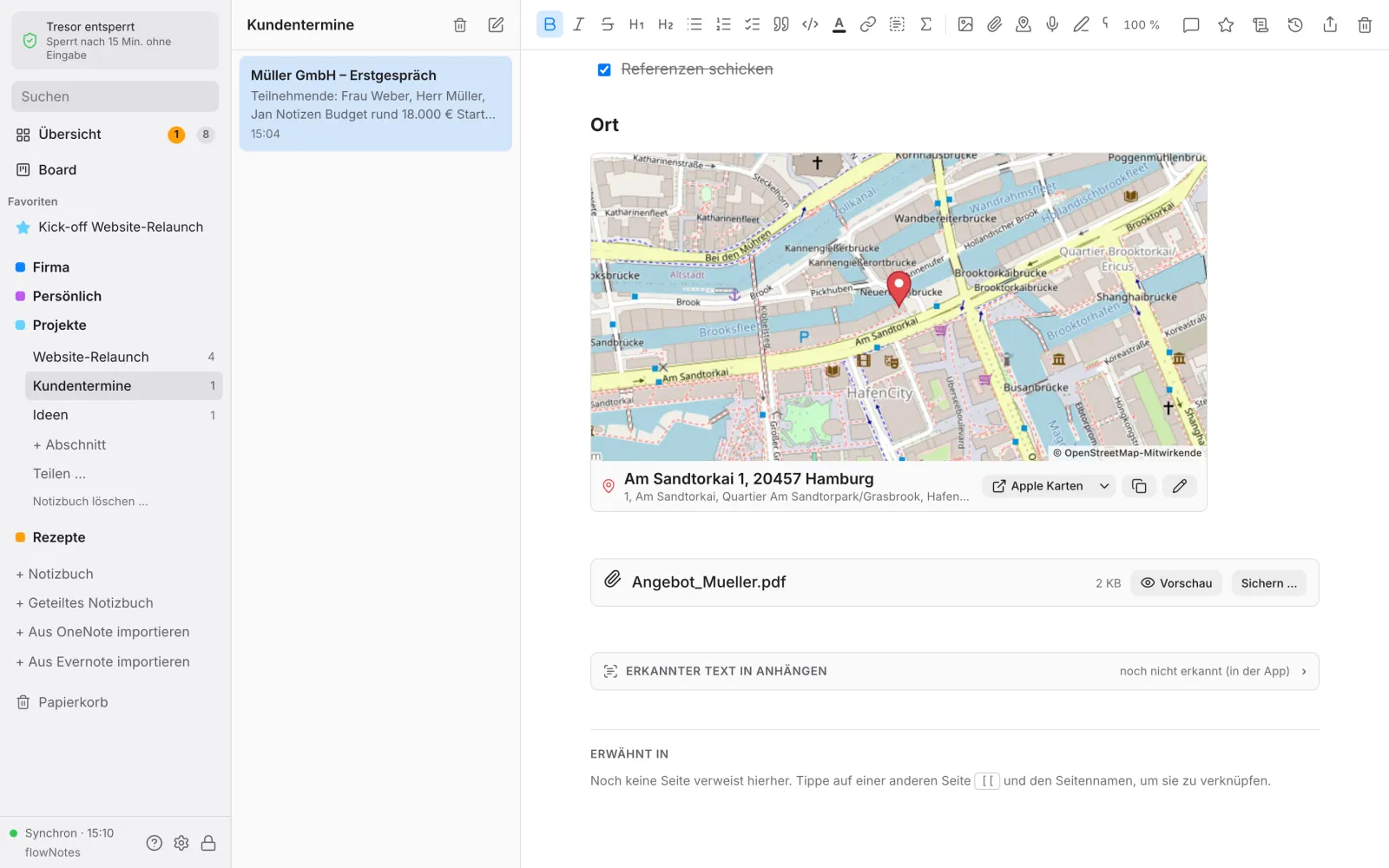
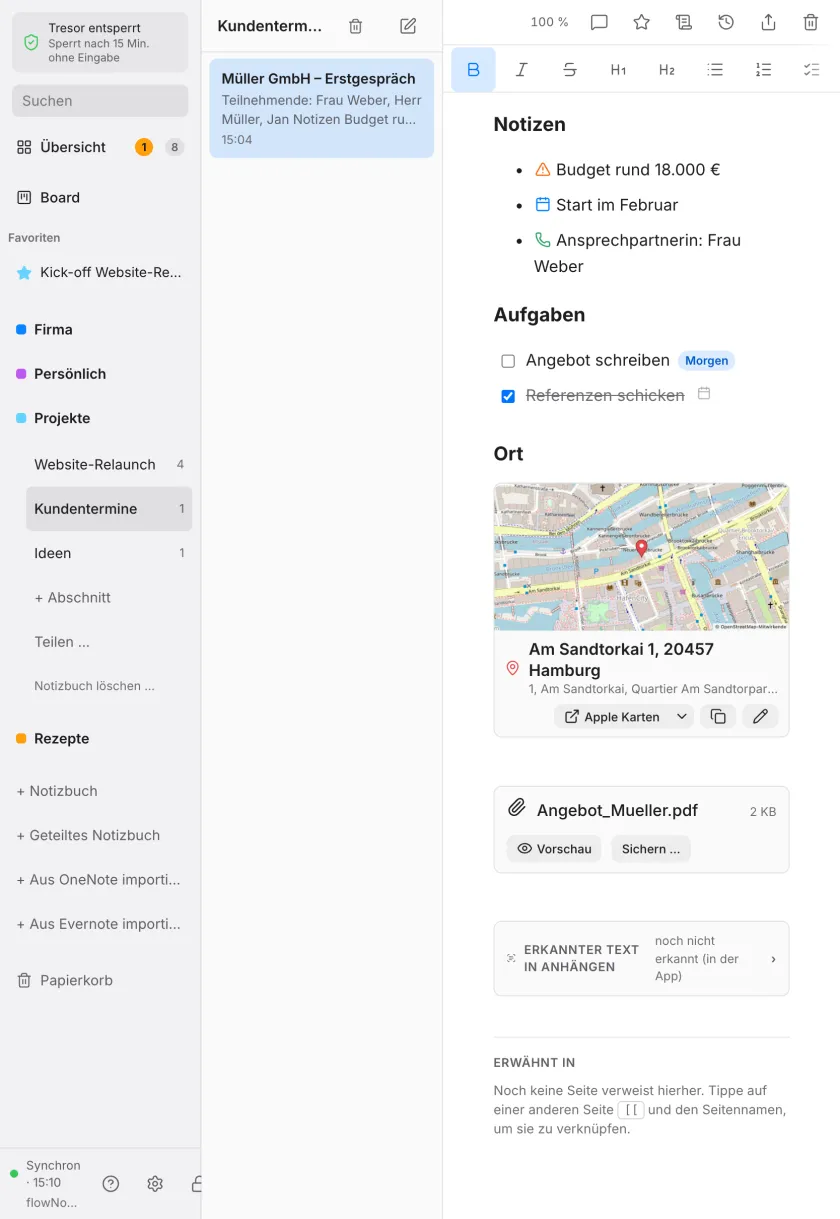
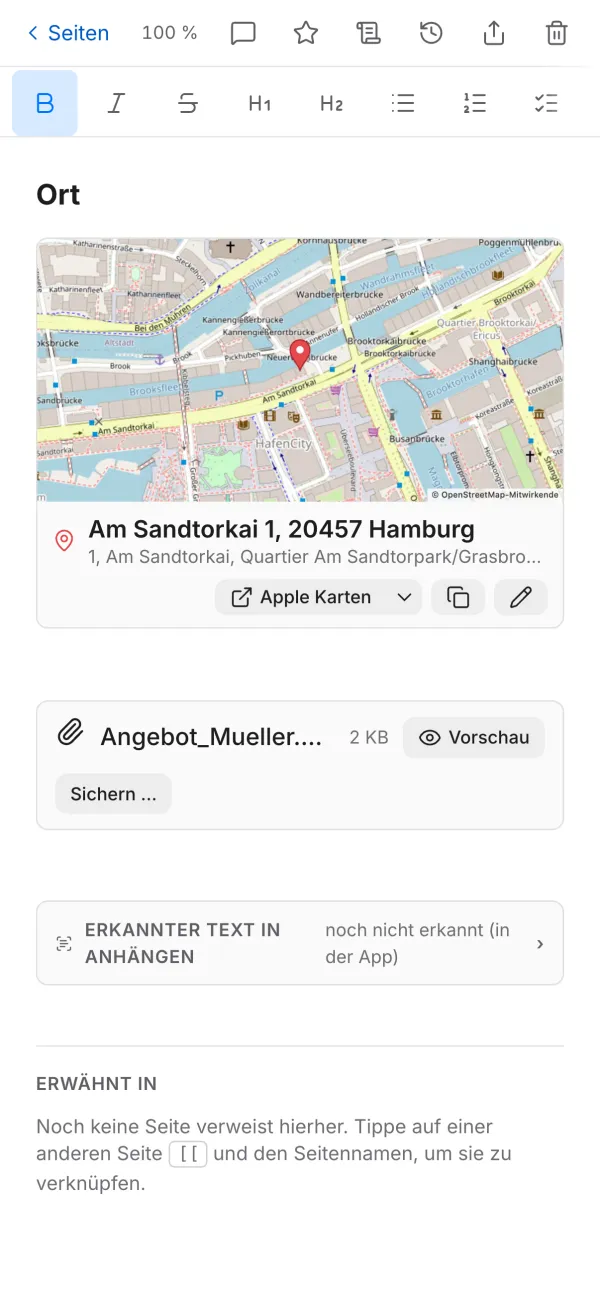
A map with the address and “Apple Karten” (Apple Maps), below it a PDF attachment with “Vorschau” (preview).
  • Images go in via the toolbar, paste or drag and drop. Selected images have handles at their four corners and on the right edge, fixed sizes (25–100 %) and frames. Height and width change together, and the image stays left-aligned – just like diagrams.
  • Files are attached with the paper clip and stored encrypted in the notebook like everything else.
  • Preview: open PDFs, images, text files, audio and video with “Preview” or a double-click right inside flowNotes – without saving a decrypted copy. In PDFs, zoom with ⌘ + / ⌘ −; ⌘ 0 fits the page width.
  • Maps (Pro) are inserted with the pin in the toolbar: enter an address or place, press “Search”, pan and zoom the view, adjust the label. Selected text becomes the search. The note then shows a map image with the address; “Apple Maps” (or Google Maps/OpenStreetMap via the arrow) opens the place, the pencil changes the view and label. Search and map view are fetched once from OpenStreetMap – only the image is stored, encrypted; nothing is loaded when you view it.
  • Audio notes are recorded with the microphone. With Pro they can be transcribed on the device.

The free version allows attachments up to 10 MB per file.

Tables

Insert tables, edit rows and columns, adjust widths.

The table icon inserts a table. With the cursor inside, buttons appear for rows and columns, header row, merging or splitting cells, and deleting.

  • Column width: drag the right cell edge. Row height: drag the bottom edge.
  • “Reset all column widths” spreads the columns evenly again.

Diagrams

Draw flowcharts with shapes, connectors and templates.

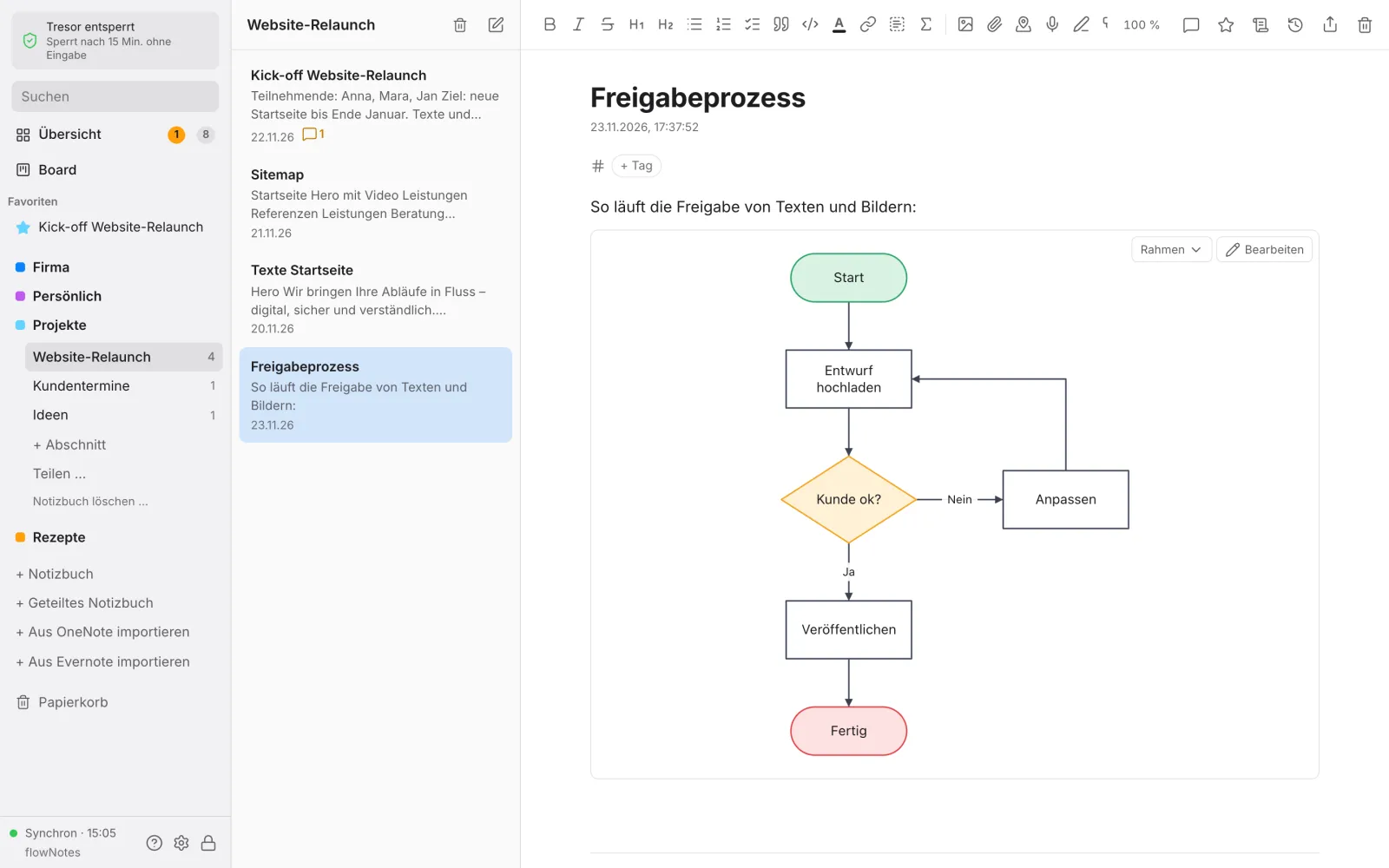
A flowchart with a decision and a loop, right inside the note.

“Insert diagram” opens the diagram editor with shapes, connectors, labels and templates. Double-click a diagram to edit it again.

  • Size: A selected diagram has handles at its four corners and on the right edge, plus fixed sizes (25–100 % and “Auto”). Height and width change together, and the diagram stays left-aligned.
  • Set frame and background via “Frame”.
  • On iPad and iPhone: double-tap for text, one finger on empty space pans, two fingers zoom.
  • draw.io / diagrams.net files can be imported.

Free: one diagram per notebook. Further diagrams stay visible and become editable with Pro.

Drawing and handwriting

Draw on the page with pen, marker and highlighter.
The pen icon turns on the drawing layer, with a bar for pen, marker, highlighter, shapes, eraser and a lasso to select and move. Undo with ⌘Z, redo with ⇧⌘Z.

With Pro, handwriting is recognised on the device and becomes searchable.

Formulas and code

LaTeX formulas and code blocks with syntax highlighting.

  • Formulas: via the Σ icon or by typing $$…$$. Click a formula to open the formula editor.
  • Code: via the </> icon or by typing ``` . At the top of the block, choose the language or let it be detected automatically; “Copy” puts the code on the clipboard. Tab and ⇧Tab indent and outdent.
Canvas pages

Freely movable containers, as in OneNote.

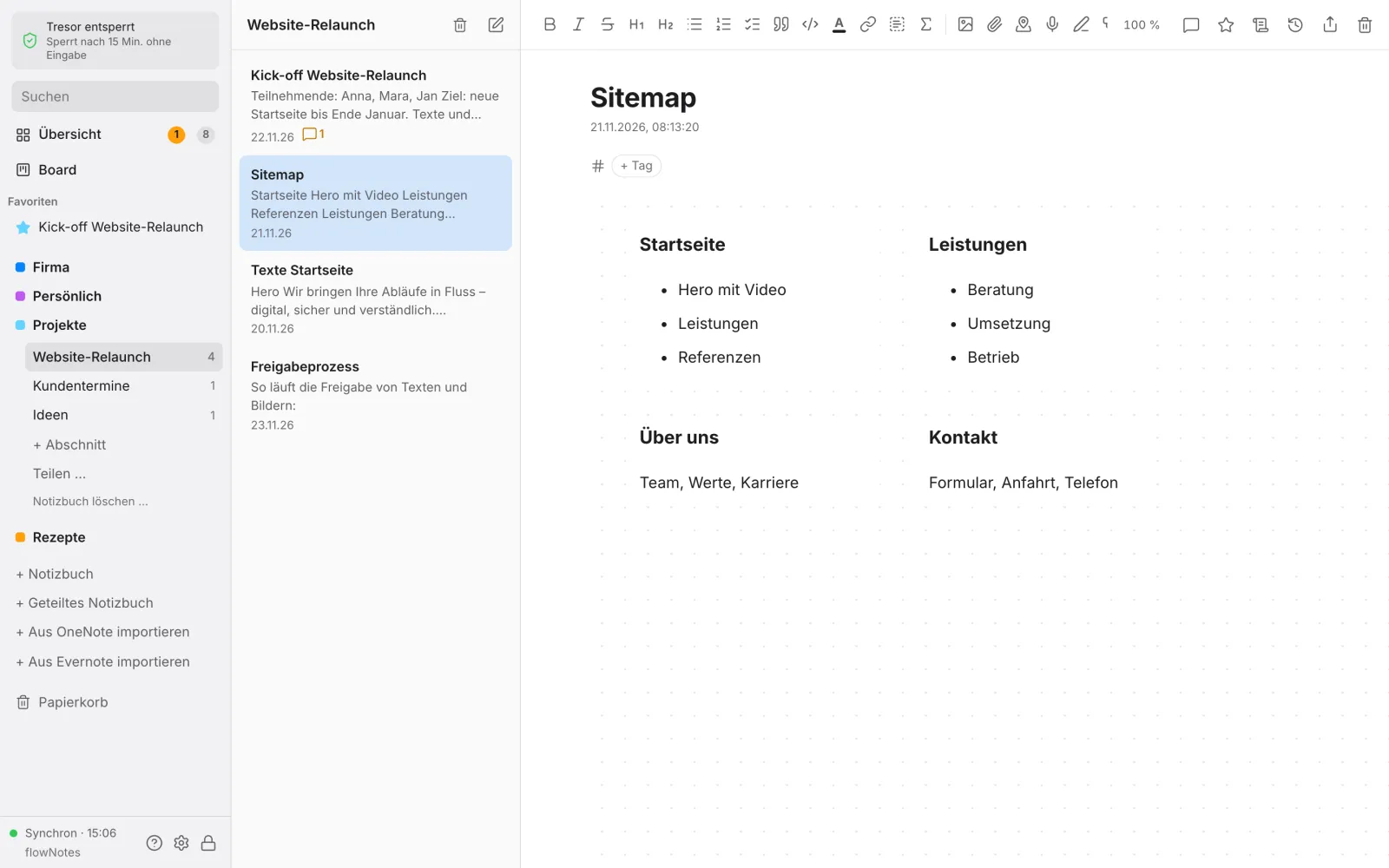
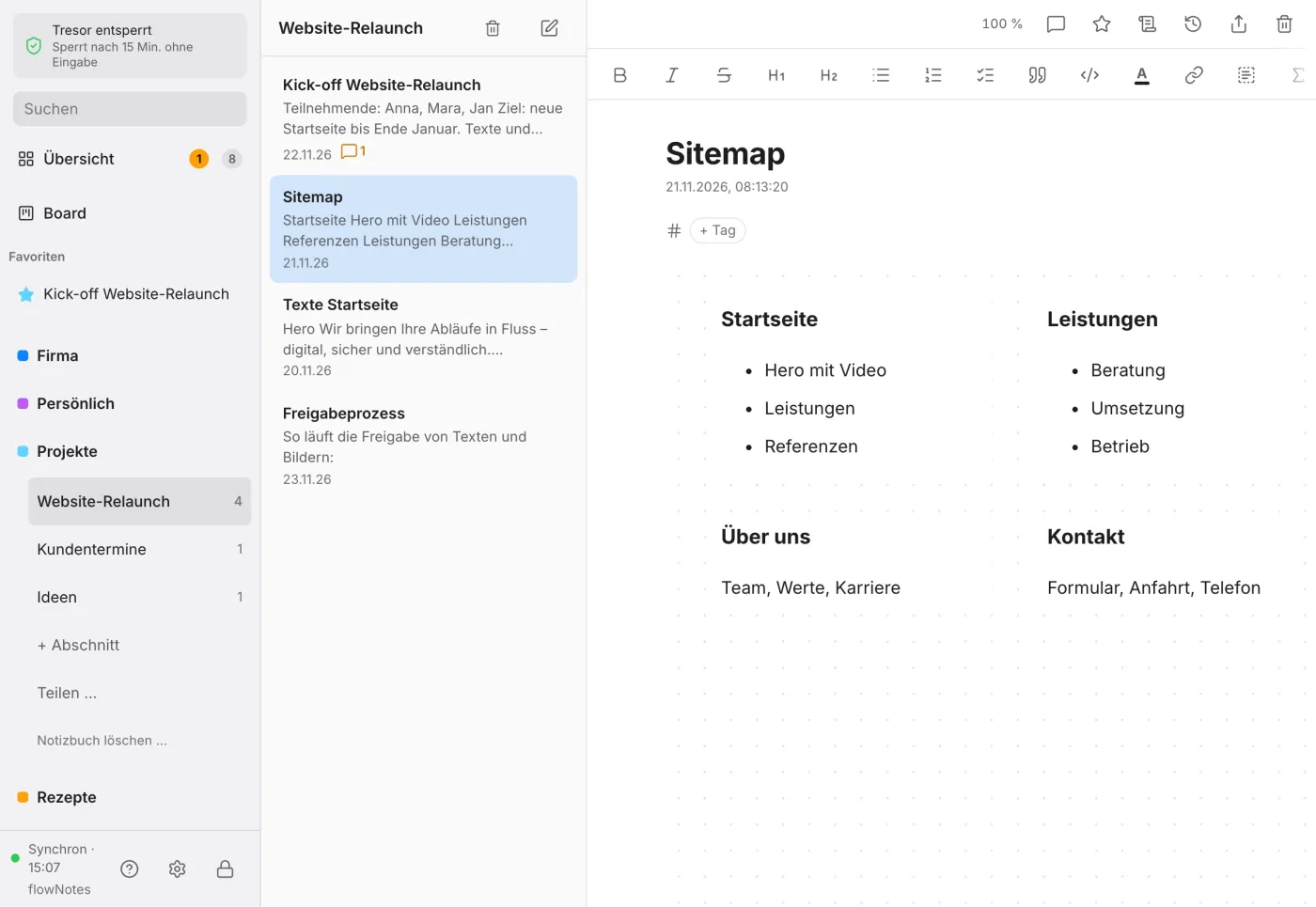
A canvas page: freely placed text containers instead of flowing text.

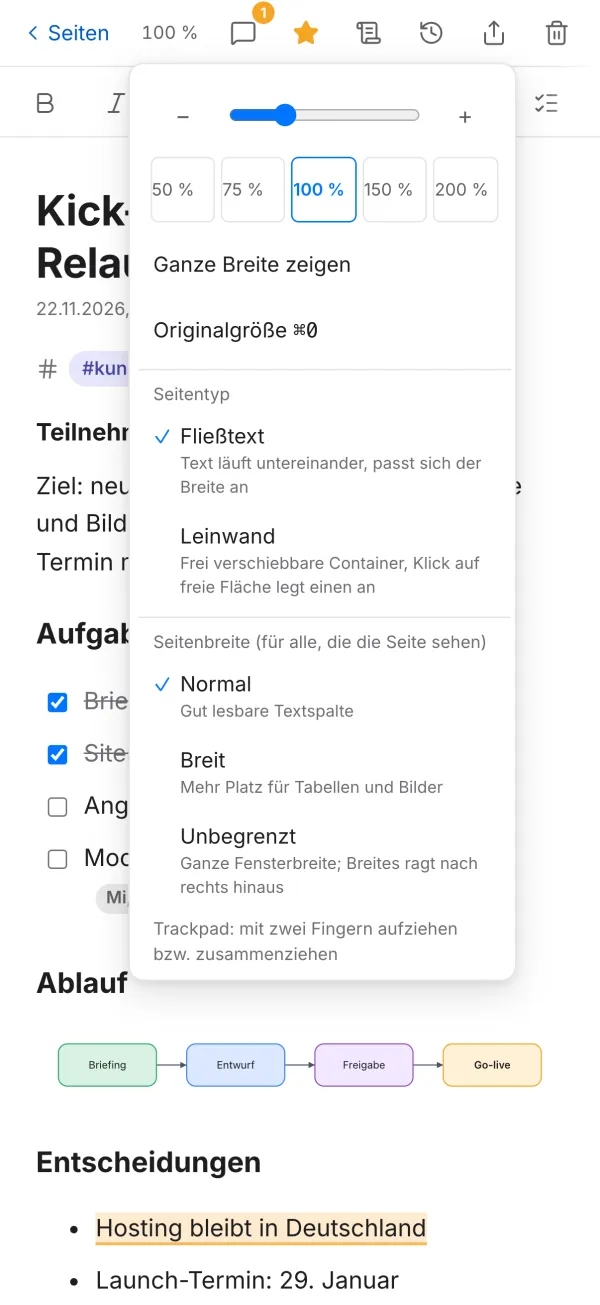
Besides flowing text pages there are canvas pages. Switch the page type in the view menu (the percentage at the top right) under “Page type”.

  • Click an empty spot to create a container there.
  • Move a container by its top handle; change its width at the right edge.
  • Dragging on empty space selects several containers with a frame (lasso). ⌘A selects all, ⌘D duplicates the selection.

Free: one canvas page per notebook.

Zoom and page width

Zoom in, out and widen the view per page.

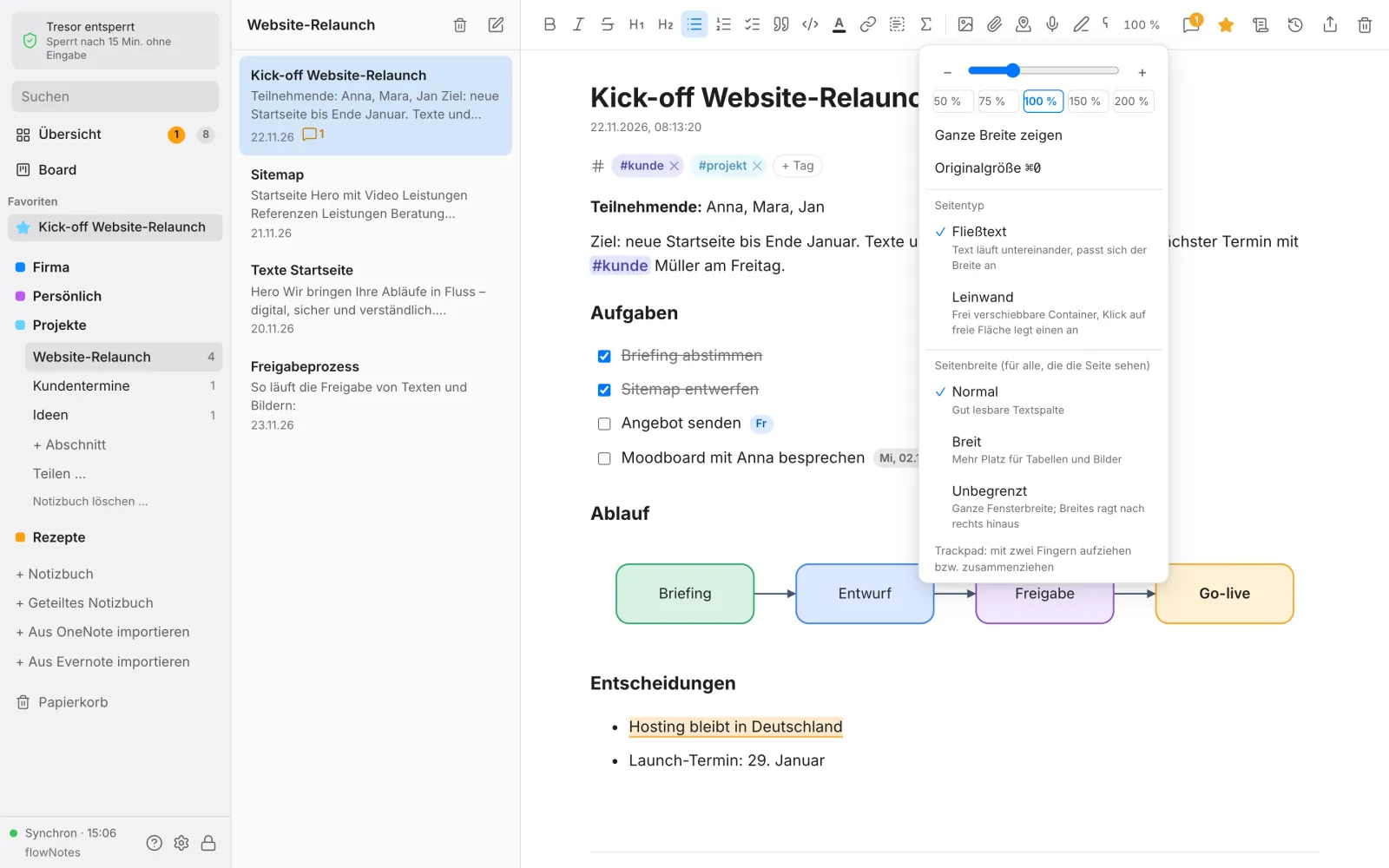
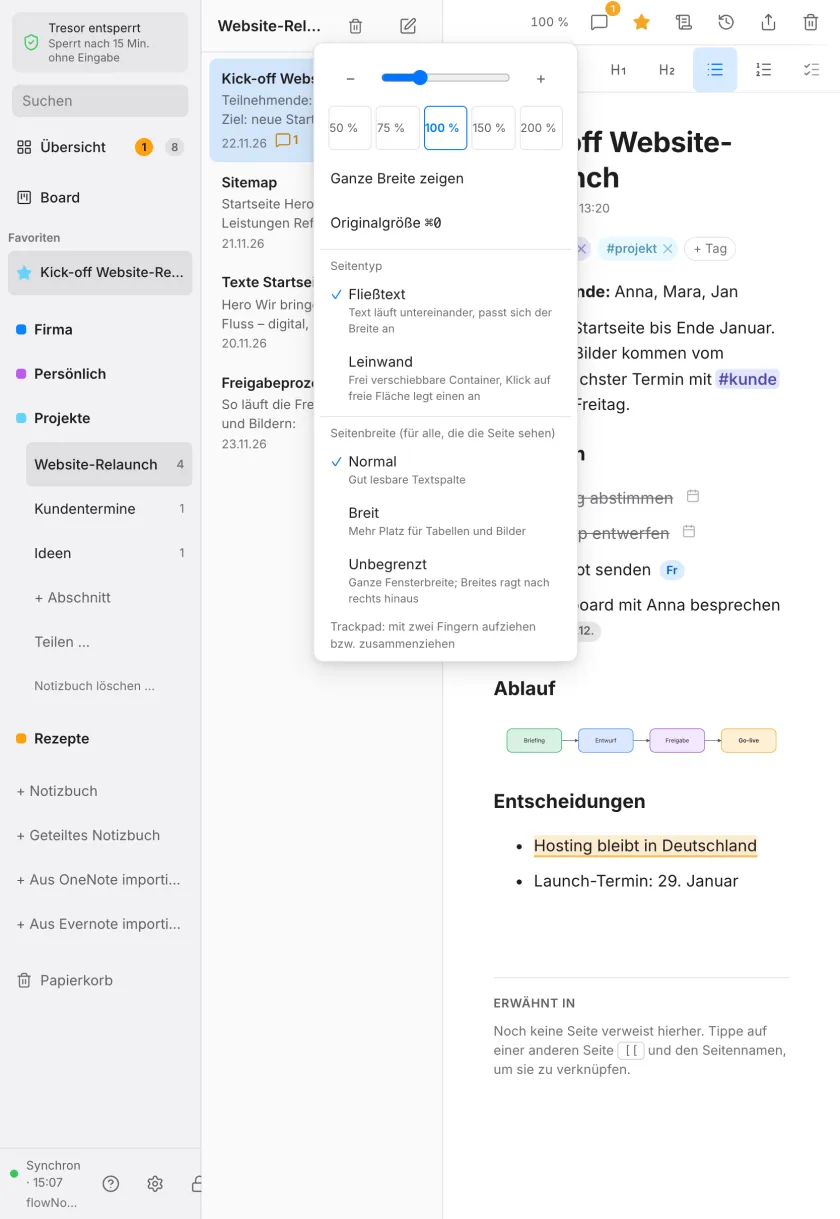
The view menu with zoom, page type and page width.

⌘+ zooms in, ⌘− zooms out, ⌘0 resets to 100 %. The view menu also sets the page width (normal, wide, unlimited). flowNotes remembers the view per page.

Organising and finding

Search

Full-text search across all notebooks, including images and PDFs.

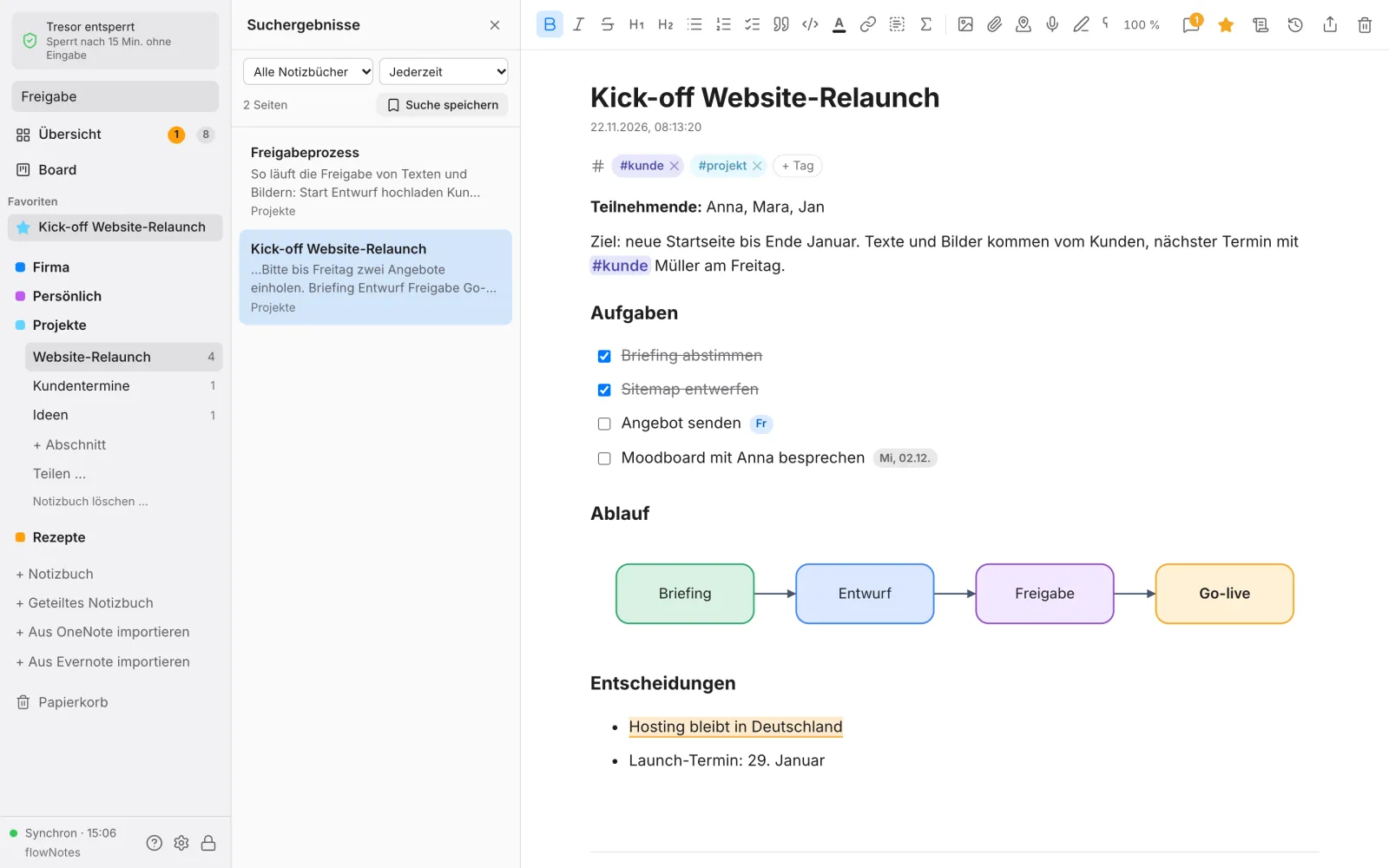
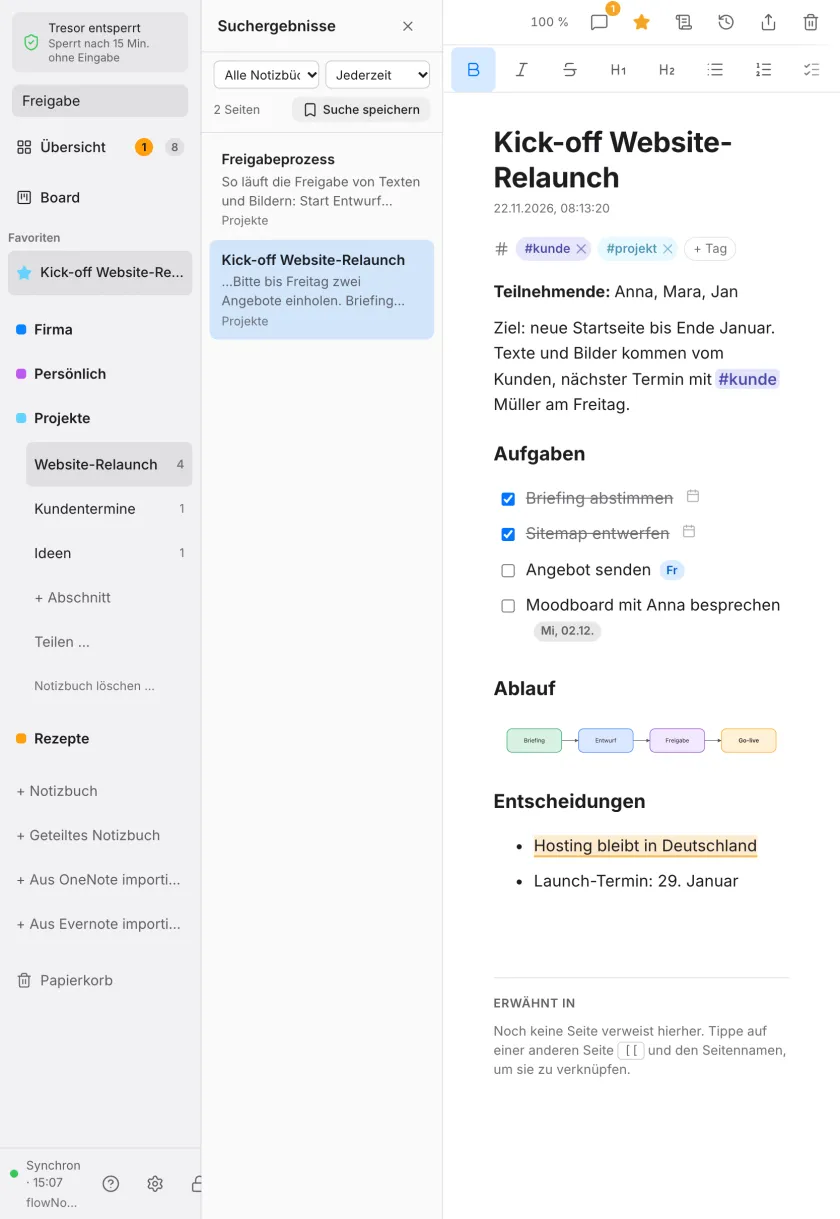
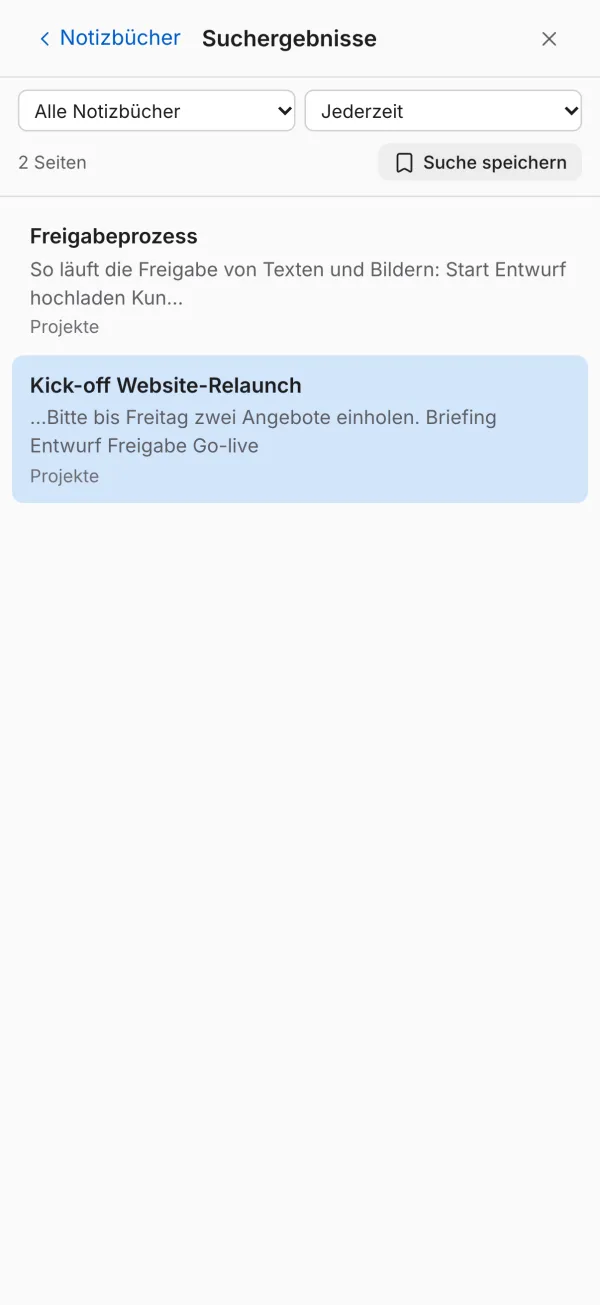
Search results for “Freigabe”, filterable by notebook and time range.

The search field at the top of the sidebar searches all notebooks: titles, text, tags and comments. Filters narrow by notebook, tag or time; save frequent searches as a saved search.

With Pro, search also finds text in images, PDFs and handwriting. Recognition runs only on your device.

Tags

Mark pages with #tags in the text or in the page header.

  • Type #client anywhere in the text, or add a page tag via “+ Tag” below the title.
  • While typing, flowNotes suggests existing tags; ↩ or Tab accepts.
  • Click a tag to see all pages with it.
  • # inside code blocks and inline code is not a tag.

Linking pages

Refer to other pages with [[, even across notebooks.

Type [[ and the start of a page name. flowNotes suggests matching pages, also from other notebooks; ↩ accepts. Click the link to open the page.

At the bottom of every page, “Mentioned in” lists the pages that link to it. Renaming a page updates the links.

Daily notes and templates

One page per day and ready-made page templates.

⌘⇧T opens today's daily note or creates it. Earlier daily notes are in the Overview and the sidebar.

New pages can start from templates, e.g. meeting, project page or daily note. Your own templates: right-click a page → “Save as template …”.

Board

All tasks as a Kanban board across notebooks.

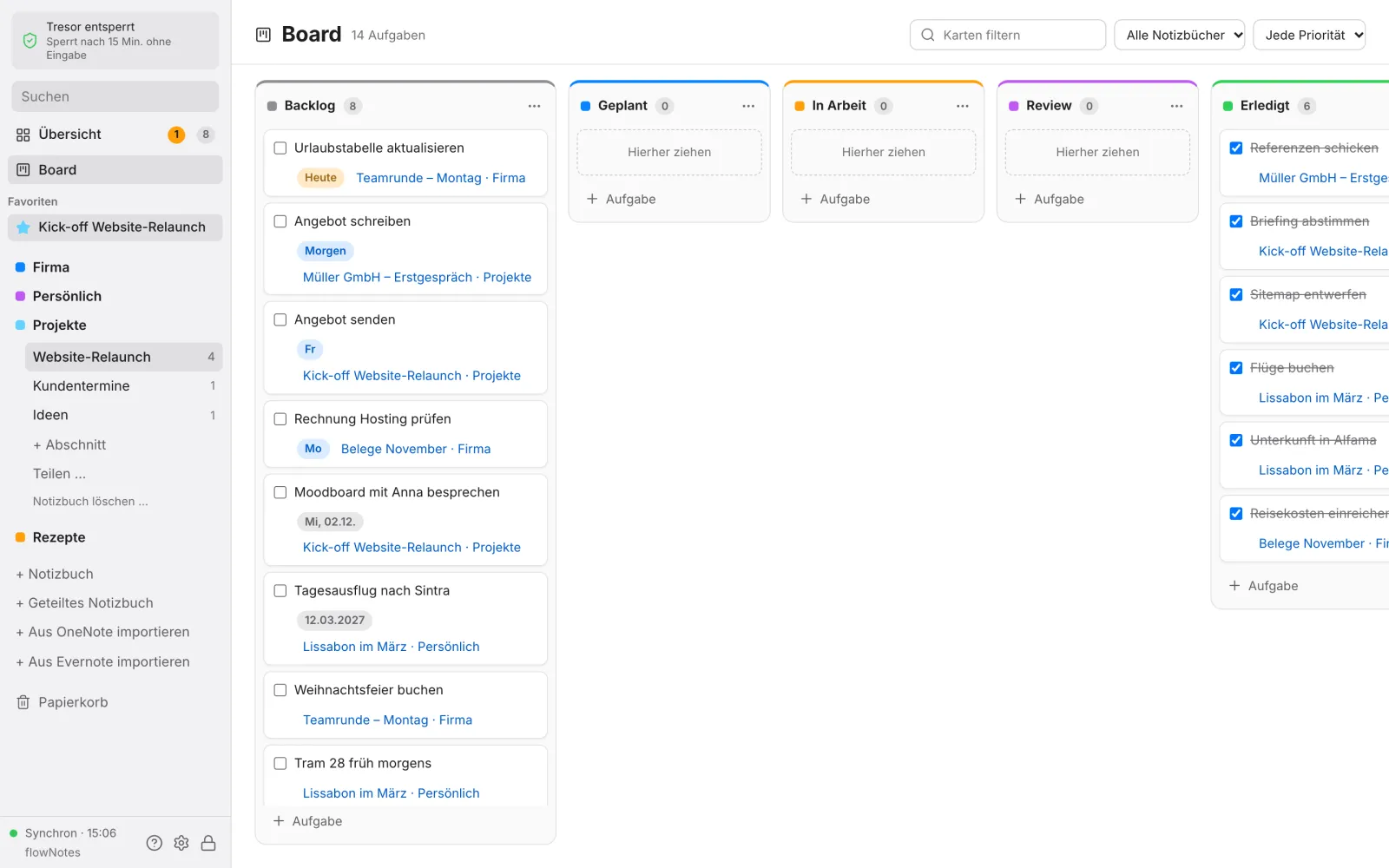
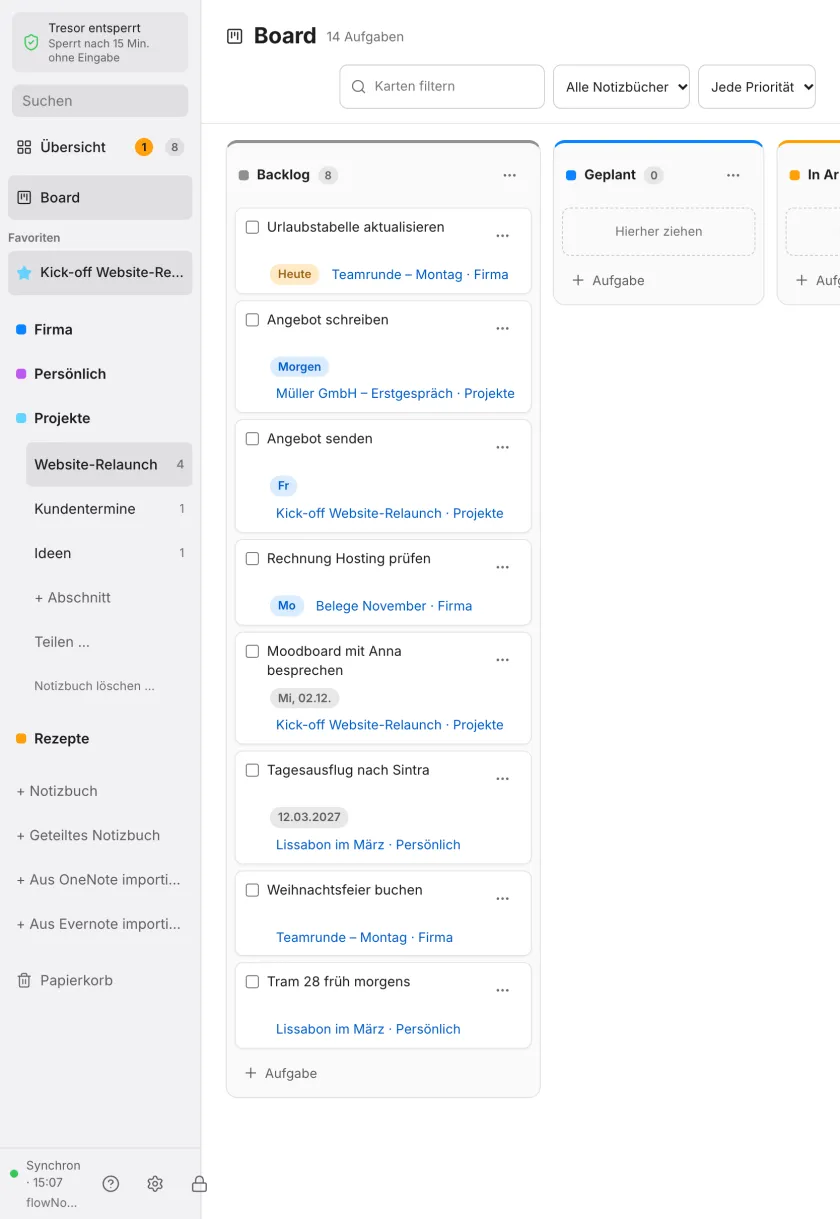
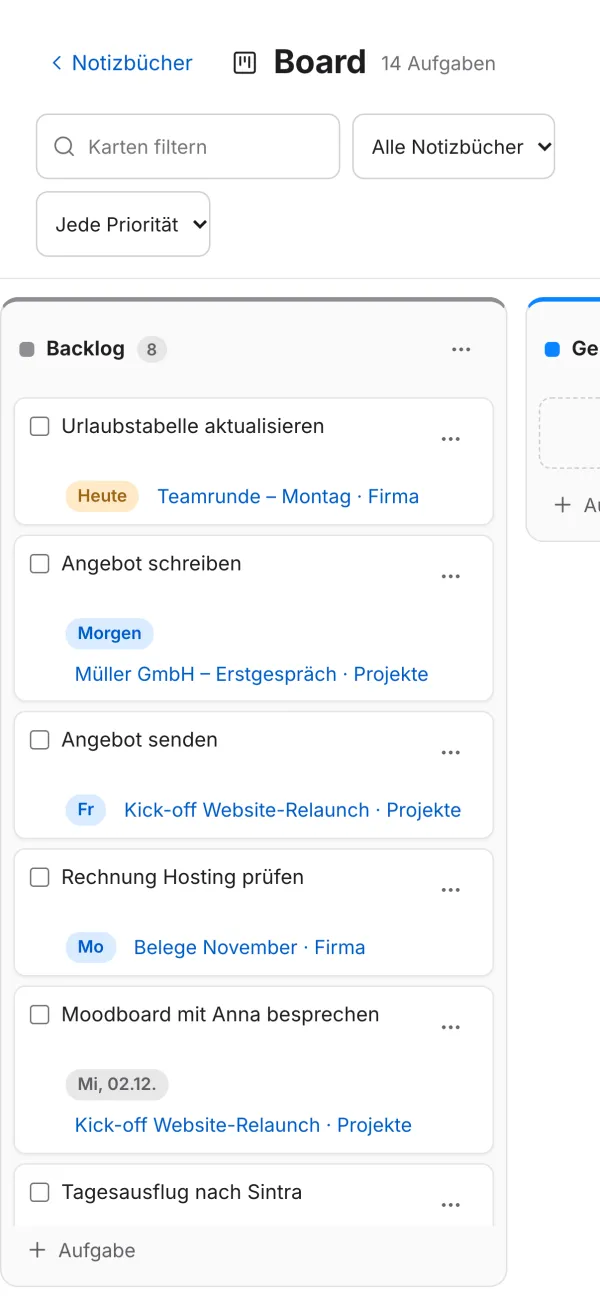
The board collects the tasks from all notebooks in columns.

The Board in the sidebar shows the checklist tasks of all notebooks as cards in columns. Status, priority and order are stored with the task; a card in “Done” is ticked on its page. The board is a Pro feature.

Bin

Restore deleted items for 30 days.

Deleted notebooks, sections and pages go to the bin (bottom of the sidebar), where you can restore them or delete them permanently. After 30 days they are removed automatically. Deleting and restoring apply on all devices.

Versions and collaboration

Versions and change history

View and restore earlier states of a page.

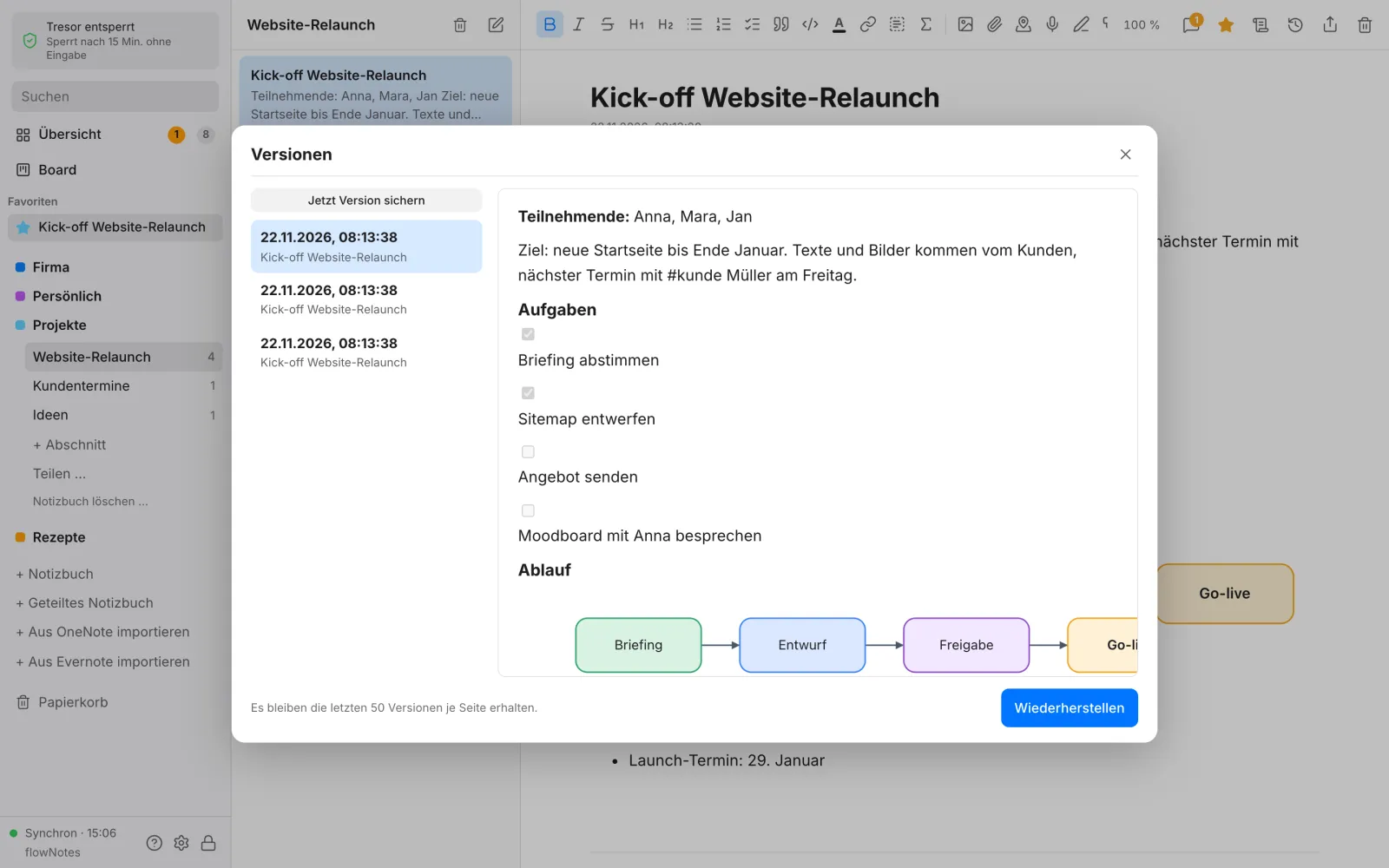
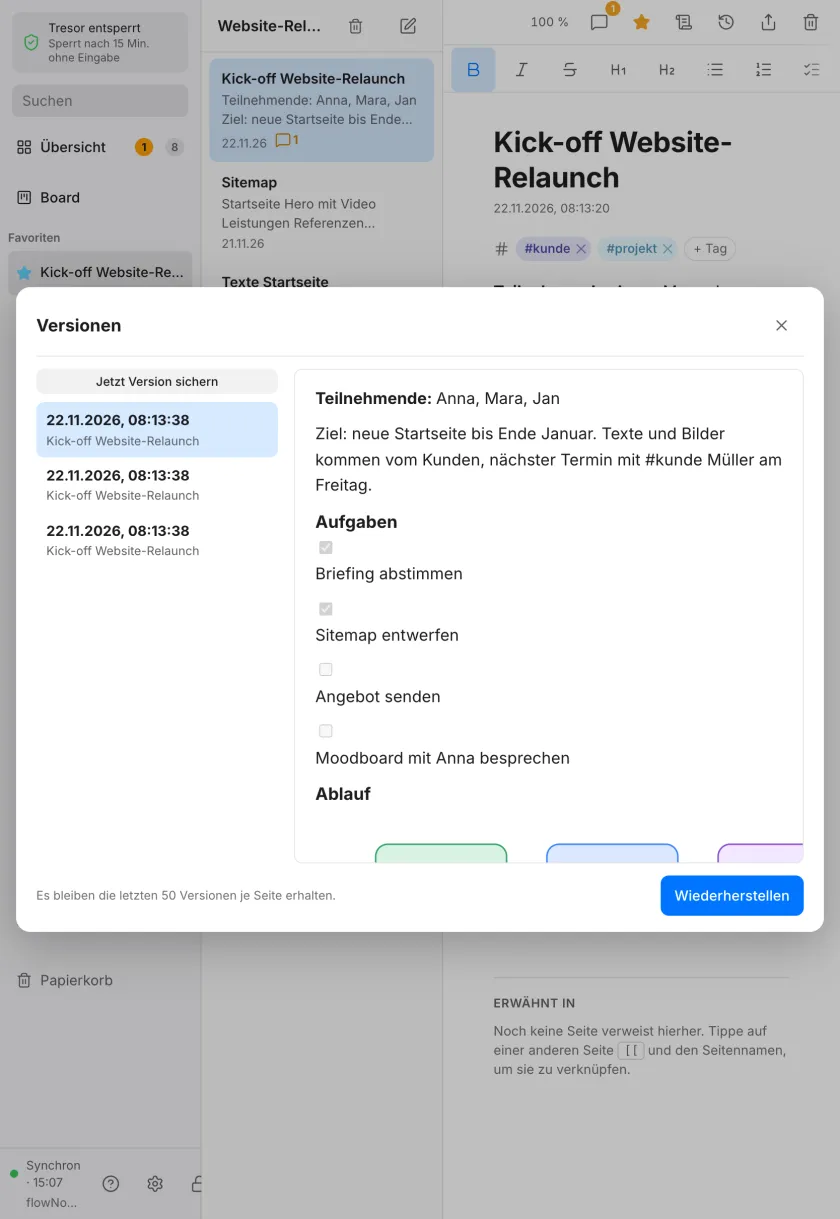
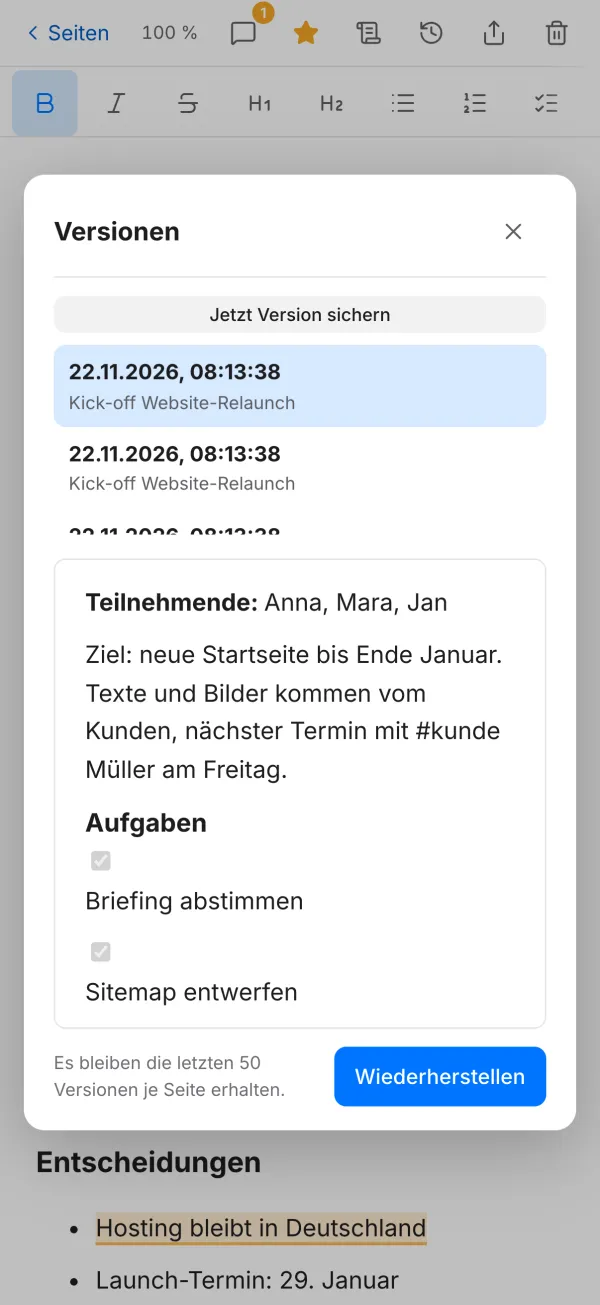
Saved versions of a page with a preview and “Wiederherstellen” (restore).

flowNotes saves versions of every page automatically while you work. “Versions” at the top right shows earlier states in a preview and restores them if needed. The change history shows who changed what and when.

Free shows versions from the last 14 days; older ones are kept and become visible again with Pro.

Comments

Comment on text and resolve questions.

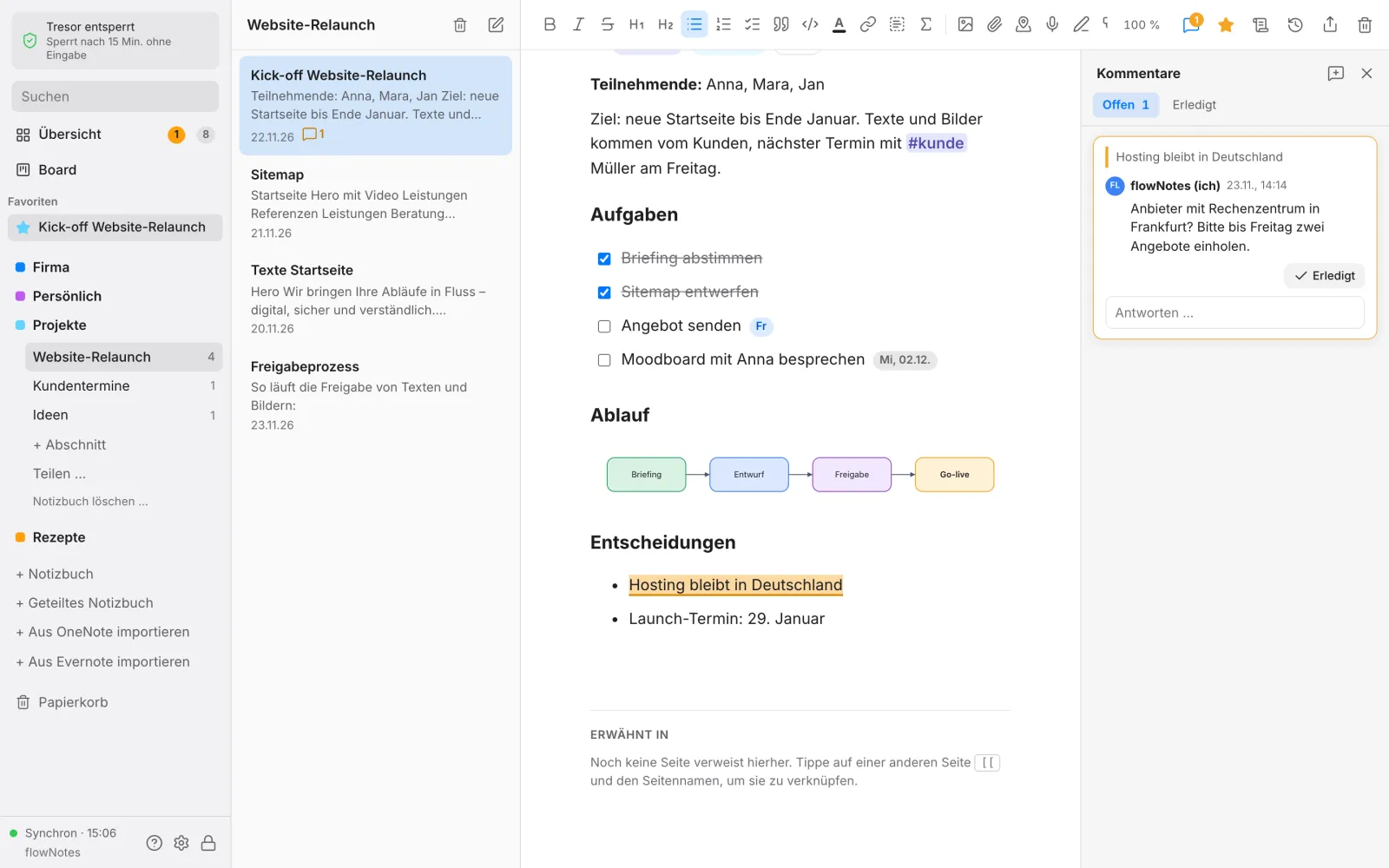
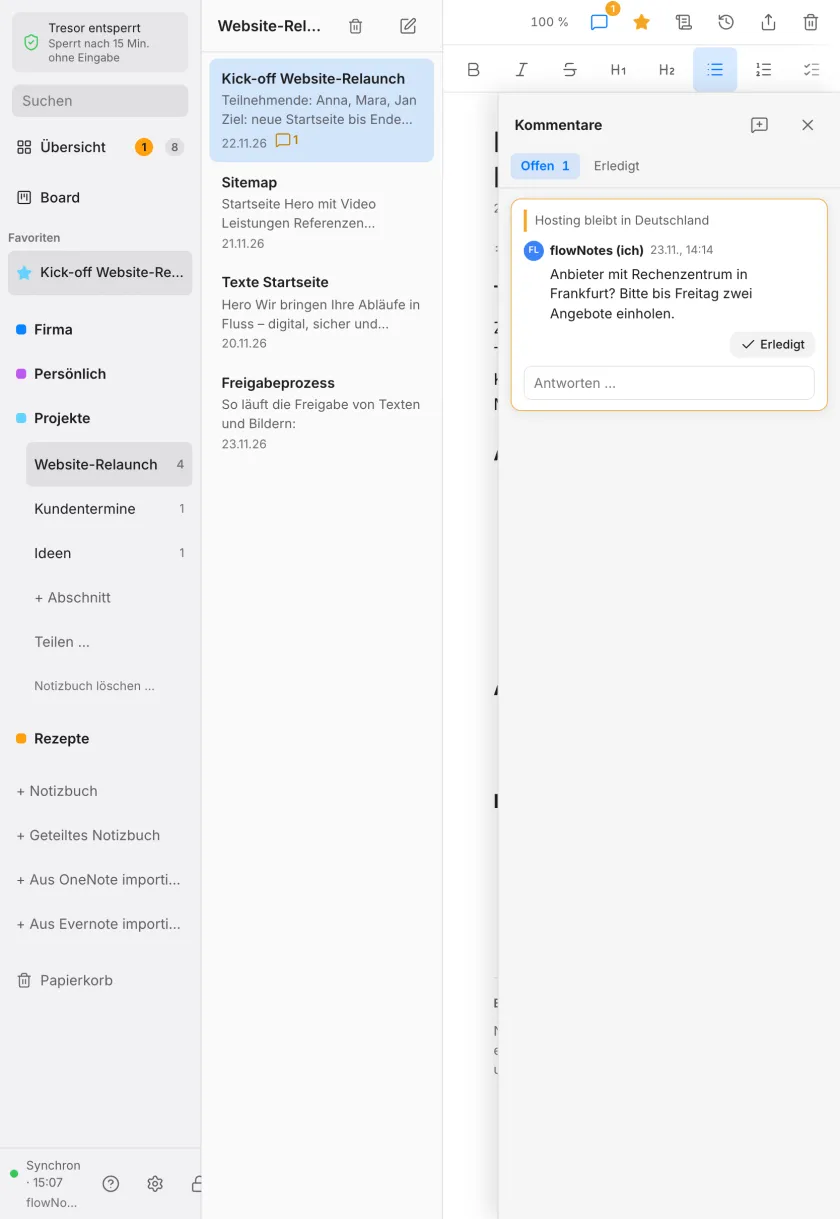
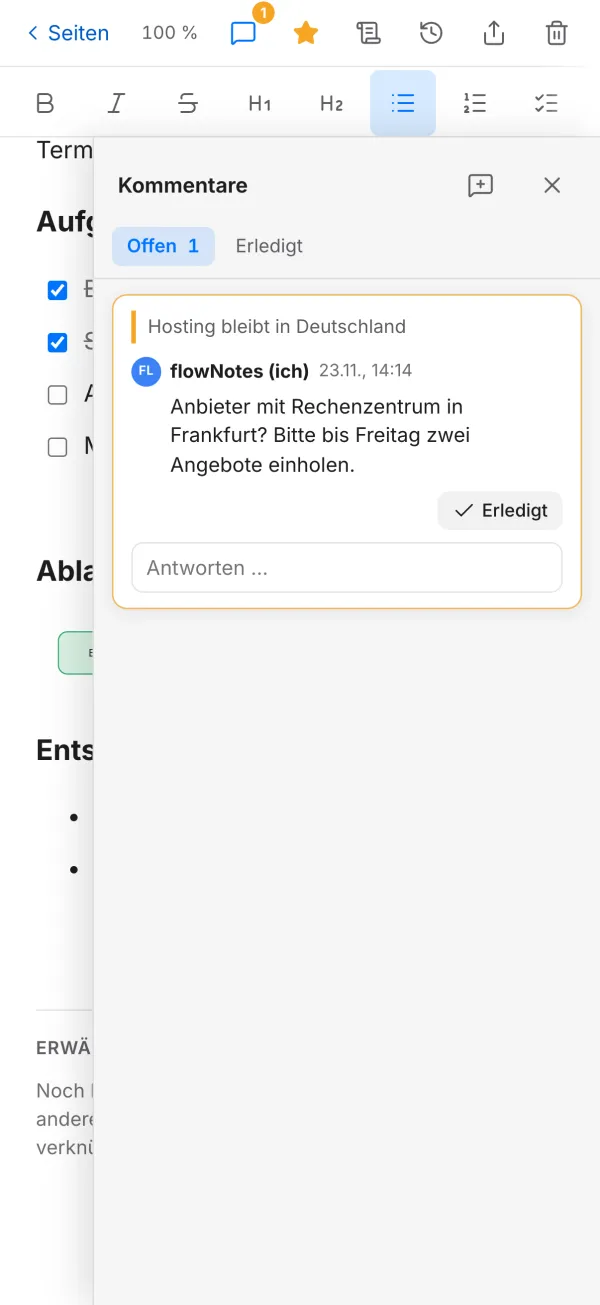
A comment on the selected text, with a reply field and “Erledigt” (done).

Select text and press ⌘⌥M or use the speech bubble at the top right. Comments appear in the right sidebar; commented text is highlighted. You can reply to comments and resolve them when done.

Sharing notebooks

Work on a notebook together – no server, still encrypted.

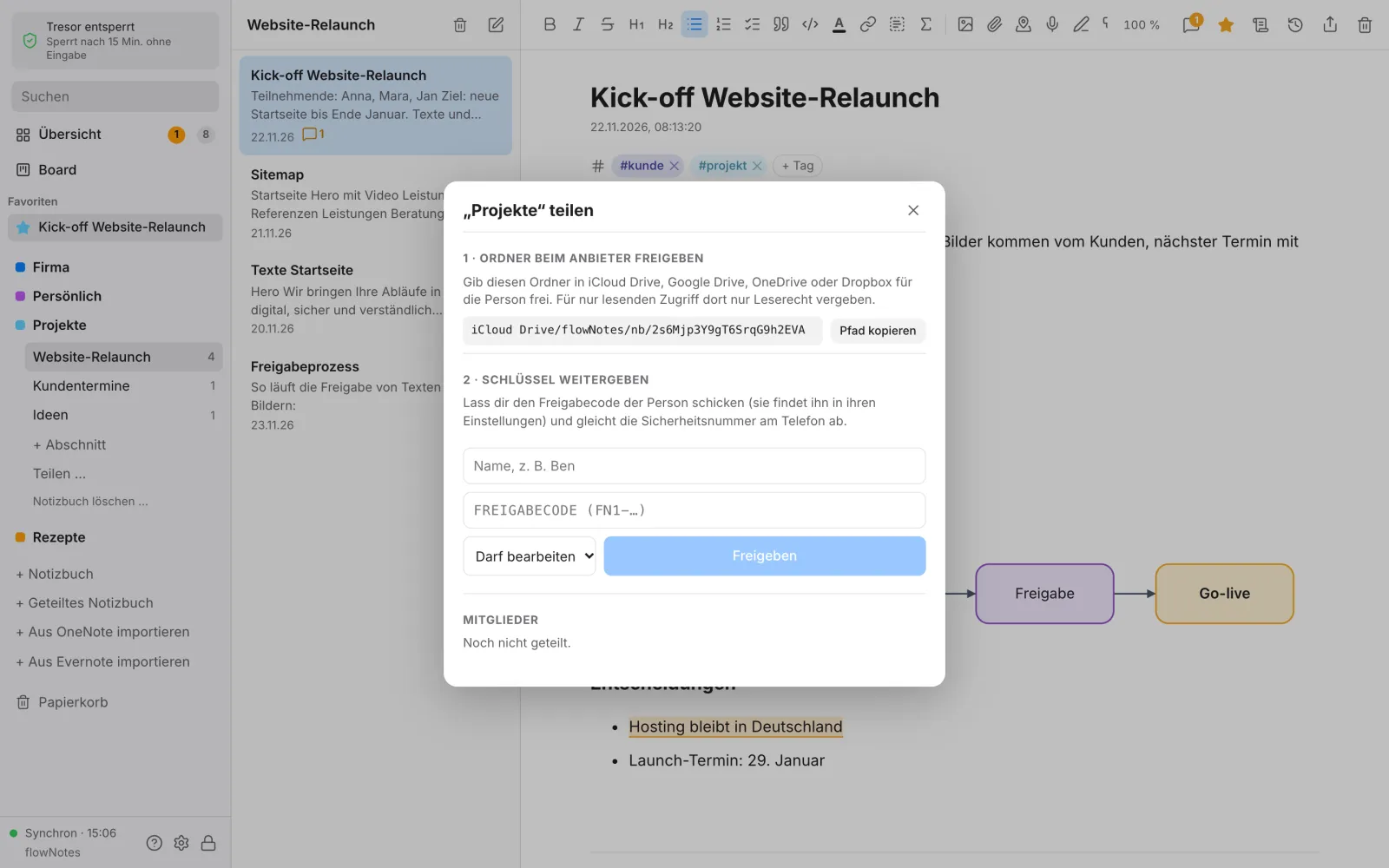
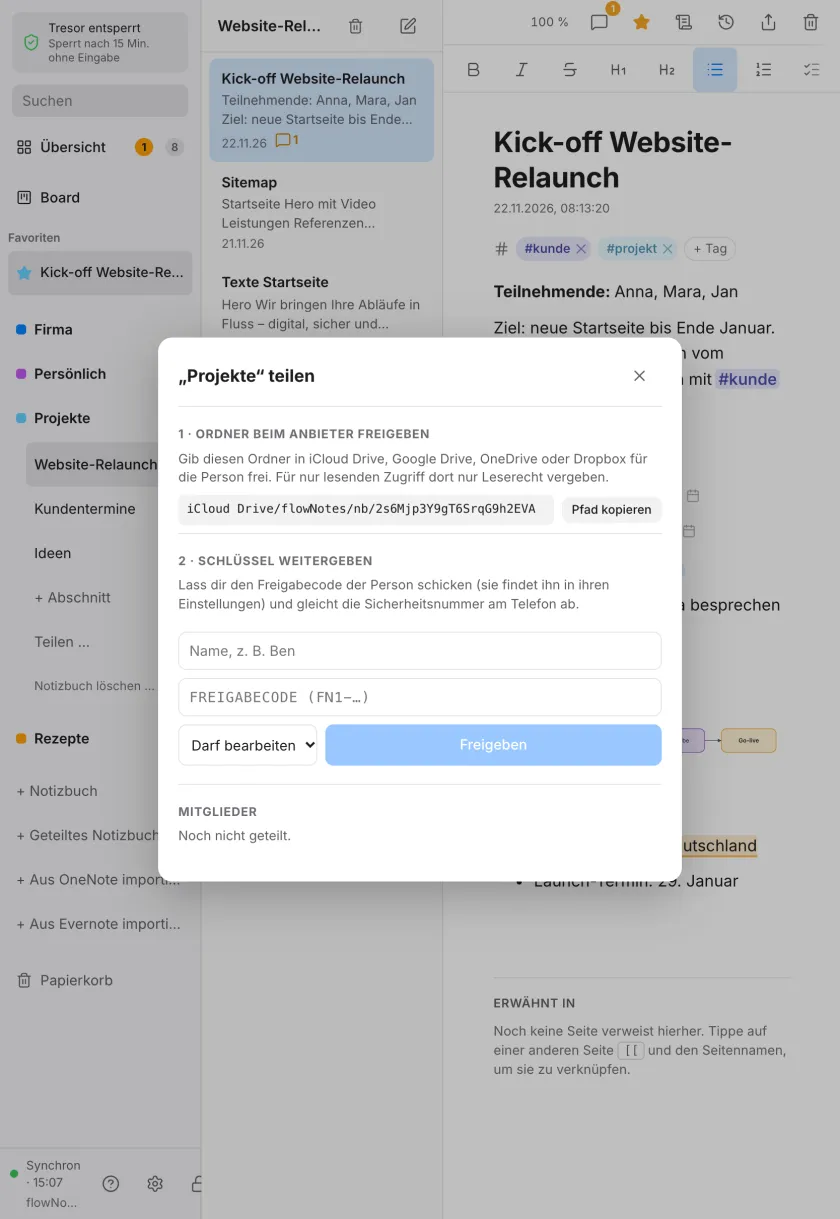
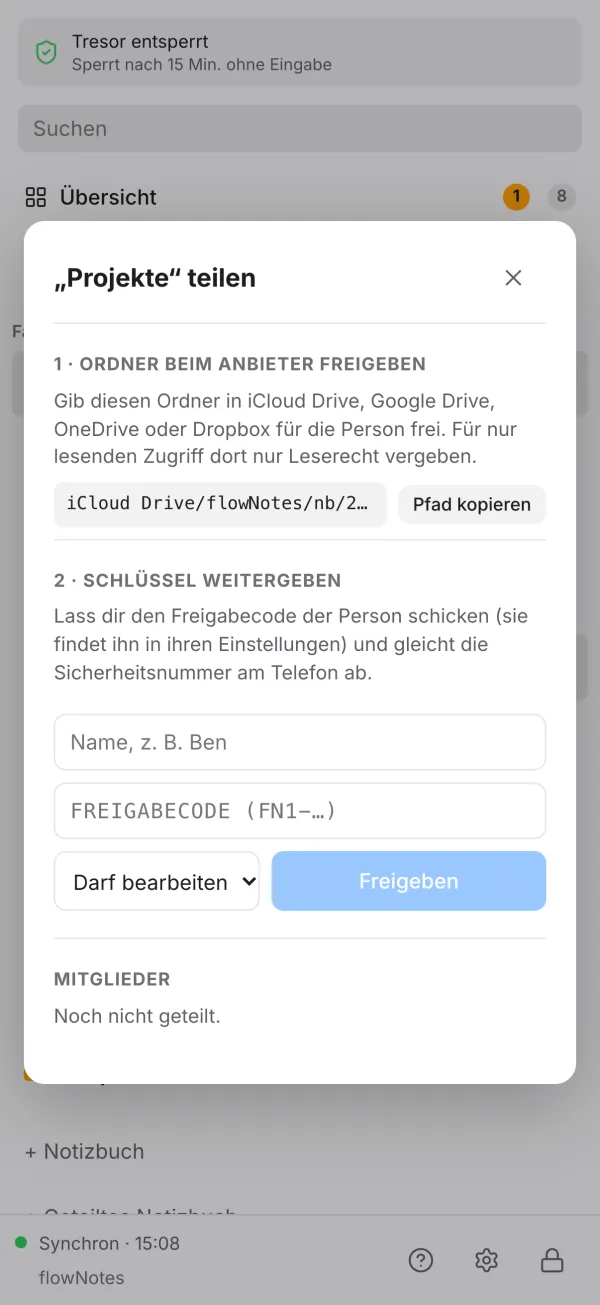
Sharing in two steps: share the folder with your provider, then pass on the key.
  1. The invited person copies their share code (FN1-…) from Settings › Sharing & Storage and sends it to you.
  2. Compare the safety number, e.g. on the phone, to make sure the code really comes from that person.
  3. Share the notebook's folder with the person at your cloud provider (read or write access) and enter the code in the notebook's sharing dialog.
  4. The person chooses “+ Shared notebook” and the shared folder.

Removing a member changes the notebook key: the person can no longer read or write anything new. Also revoke the folder share at your provider.

Live collaboration

See who is editing which page right now.

Avatars in the header, the page list and next to the paragraph show who is working where. Set your name and colour under Settings › Sharing & Storage.

  • Via the cloud folder (default): a delay of a few seconds up to about a minute, depending on the cloud client.
  • Real-time relay (optional): live cursors and instant changes. The relay only sees encrypted data and stores nothing. Everyone enters the same relay address.

Security and data

How flowNotes protects your data

End-to-end encryption – what your cloud provider can and cannot see.

Everything you write is encrypted on your device (XChaCha20-Poly1305) before it reaches the cloud folder. The key is derived from your passphrase (Argon2id) and never leaves your device.

  • Your provider sees: random file and folder names, file sizes and timestamps.
  • Your provider does not see: titles, text, images, attachments, tags, members.
  • Text recognition and transcription run on your device; there is no tracking and no account.

Touch ID, Face ID and auto-lock

Unlock faster and lock automatically.

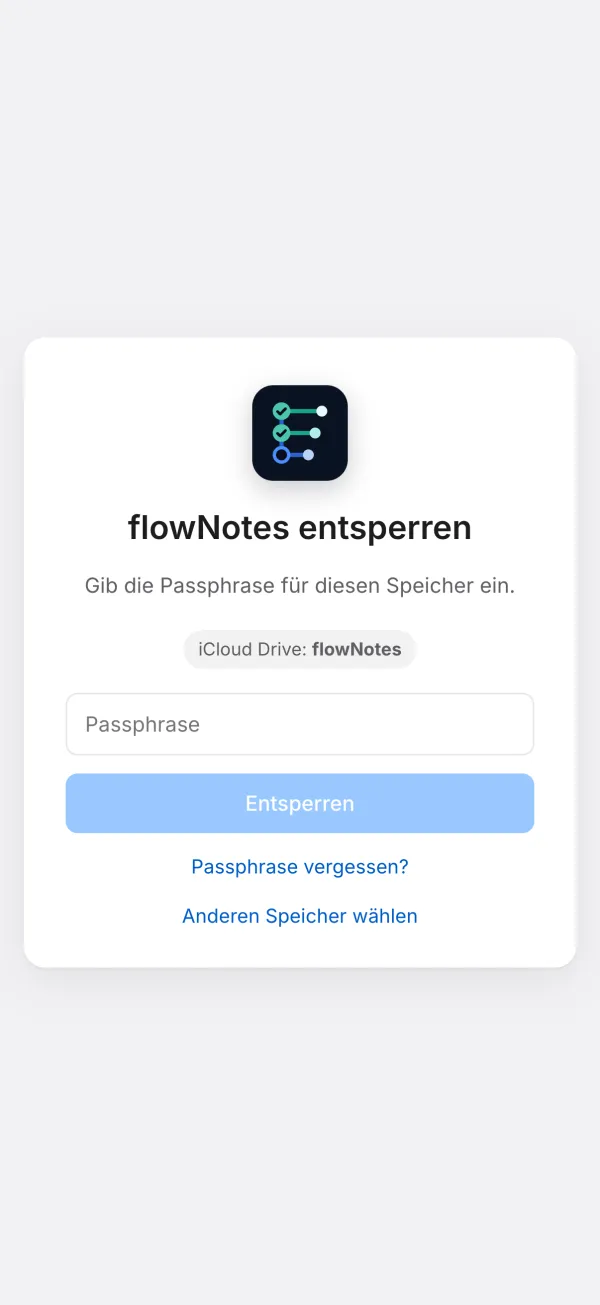
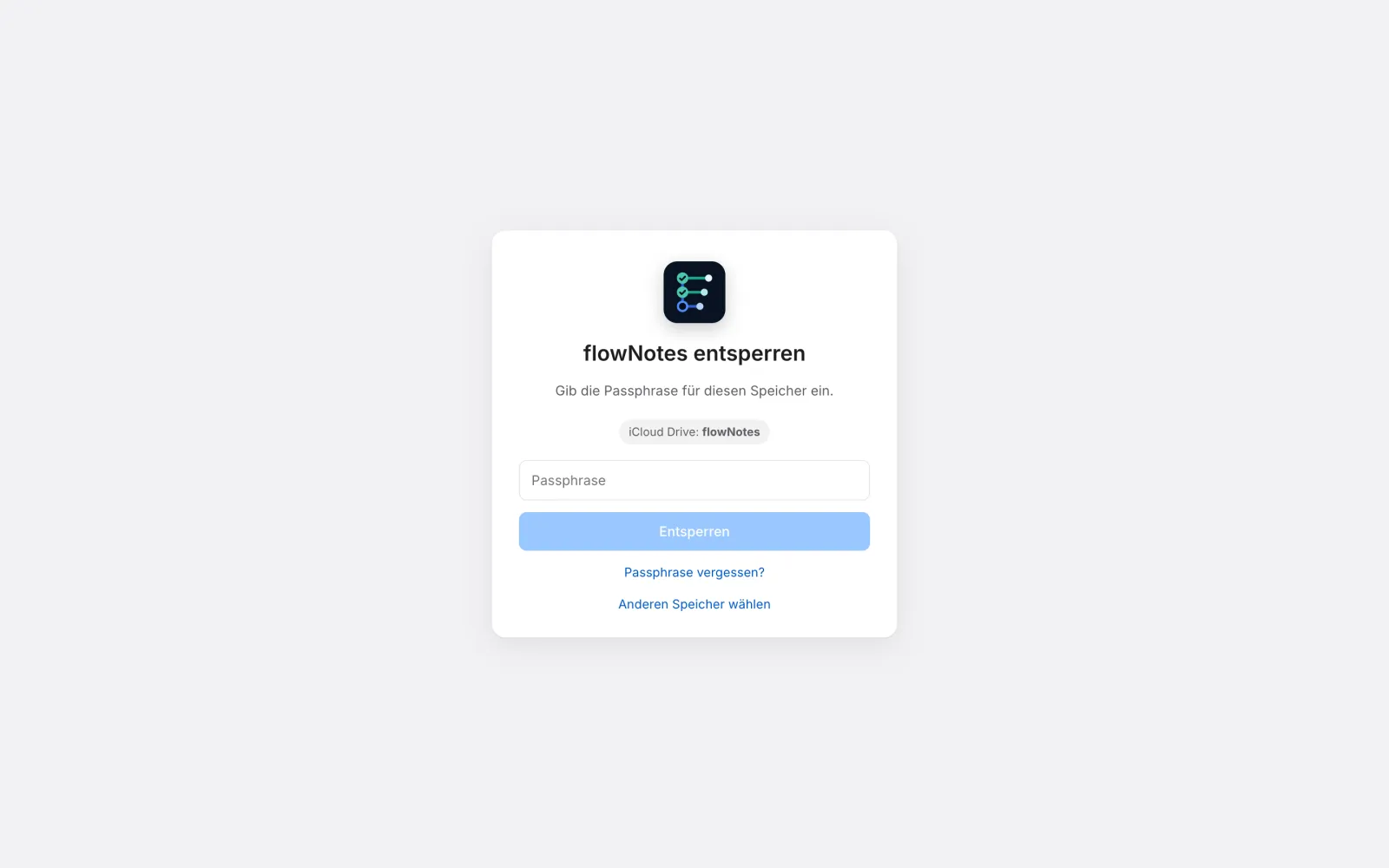
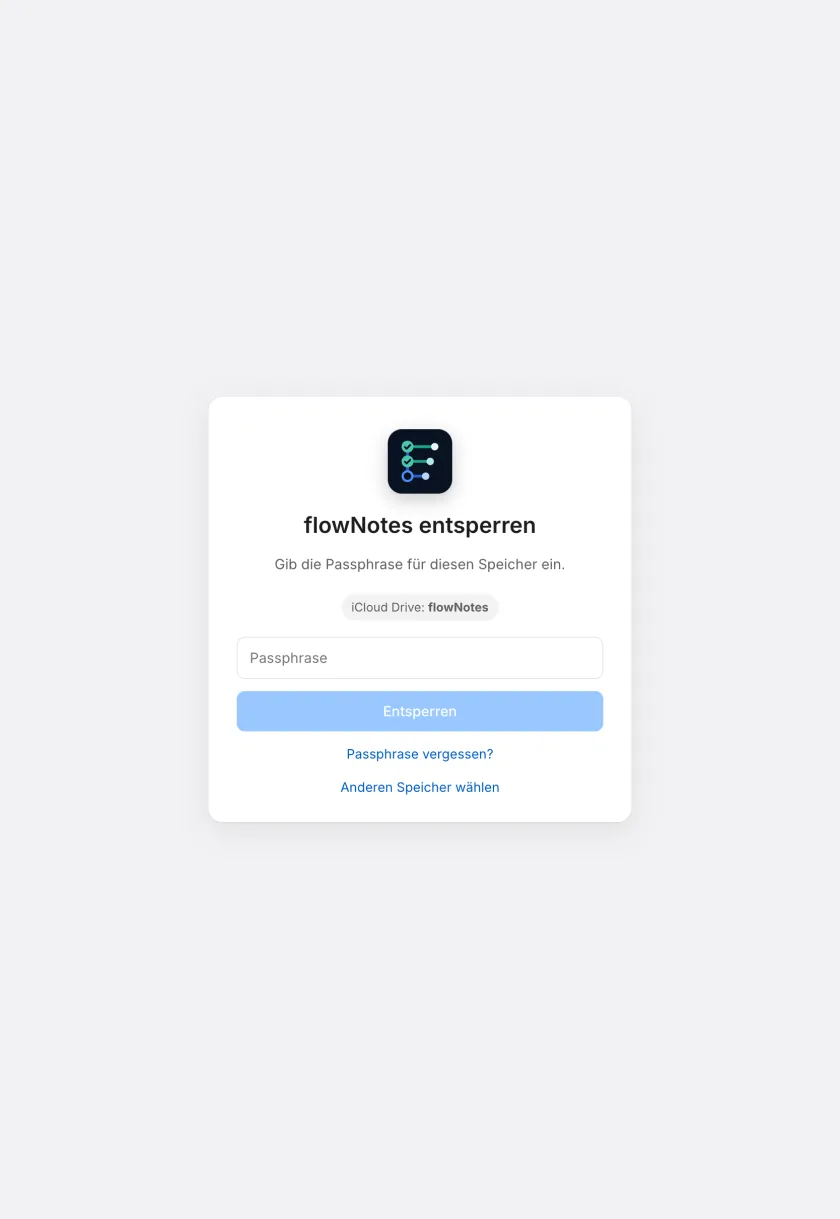
The lock screen: enter your passphrase or choose “Passphrase vergessen?” (forgot passphrase).

Under Settings › Security, turn on Touch ID (Mac) or Face ID / Touch ID (iPad, iPhone). You then unlock without the passphrase; the key is kept in the device keychain.

There you also set after how many minutes without input flowNotes locks automatically. The lock at the bottom of the sidebar locks immediately.

Changing or forgetting the passphrase

Change your passphrase and get back in with the recovery key.

  • Change: Settings › Security. The new passphrase applies to all devices immediately.
  • Forgotten: On the unlock screen, choose “Forgot passphrase?” and enter your recovery key. Then set a new passphrase.
  • New recovery key: also under Settings › Security; the old one stops working.

Important: Without passphrase and recovery key, nobody can decrypt your notes, not even us.

Sync and status

What “in sync”, “changes pending” and “waiting for files” mean.

At the bottom left of the sidebar, flowNotes shows the sync state (in German in the app):

Synchron · 10:42Everything is in sync, last at this time.
Änderungen ausstehendYour latest changes are about to be written to the folder.
Wartet auf DateienThe cloud client is still downloading files from other devices. flowNotes continues once they arrive.
OfflineThe folder is not reachable right now. Keep working; syncing happens later.

Simultaneous changes on several devices are merged automatically; there are no conflict copies.

Backup, export and printing

Full backup, export as PDF, HTML, Markdown or ZIP.

  • Full backup: Settings › Backup saves all notebooks including attachments as one encrypted file and restores it. Automatic backups are set up there too.
  • Export: “Print and export” at the top right exports a page or section as PDF, HTML, Markdown or ZIP.
  • Print: ⌘P.

Moving from OneNote and Evernote

Bring your existing notebooks along.

  • OneNote: “+ Import from OneNote” in the sidebar. On the Mac, flowNotes reads OneNote files (.one, .onetoc2, .onepkg); alternatively sign in with Microsoft and pick notebooks. Pages become canvas or flowing-text pages, as you choose.
  • Evernote: “+ Import from Evernote” and choose an .enex export file.

Mac, iPad and iPhone

Tips for the Mac

Quick capture, keyboard shortcuts and menu bar.

Quick capture: ⌃⌥N opens a small window from anywhere for a new page, an entry in today's daily note or a task; or use the menu bar icon. Change the shortcut under Settings › General.

Key shortcuts

⌘B / ⌘IBold / italic
⌘KInsert link
⌘Z / ⇧⌘ZUndo / redo
⌘⇧TToday's daily note
⌘⇧L / ⌘⇧E / ⌘⇧R / ⌘⇧JLeft / centre / right / justify
⌘⇧> / ⌘⇧<Bigger / smaller text
⌥⇧D / ⌥⇧T / ⌥⇧FInsert date / time / date and time
⌘⌥MComment on selection
⌘PPrint
⌘+ / ⌘− / ⌘0Zoom
⌘A / ⌘DCanvas: select all containers / duplicate

Tips for iPad and iPhone

Touch controls, folder from the Files app, Face ID.

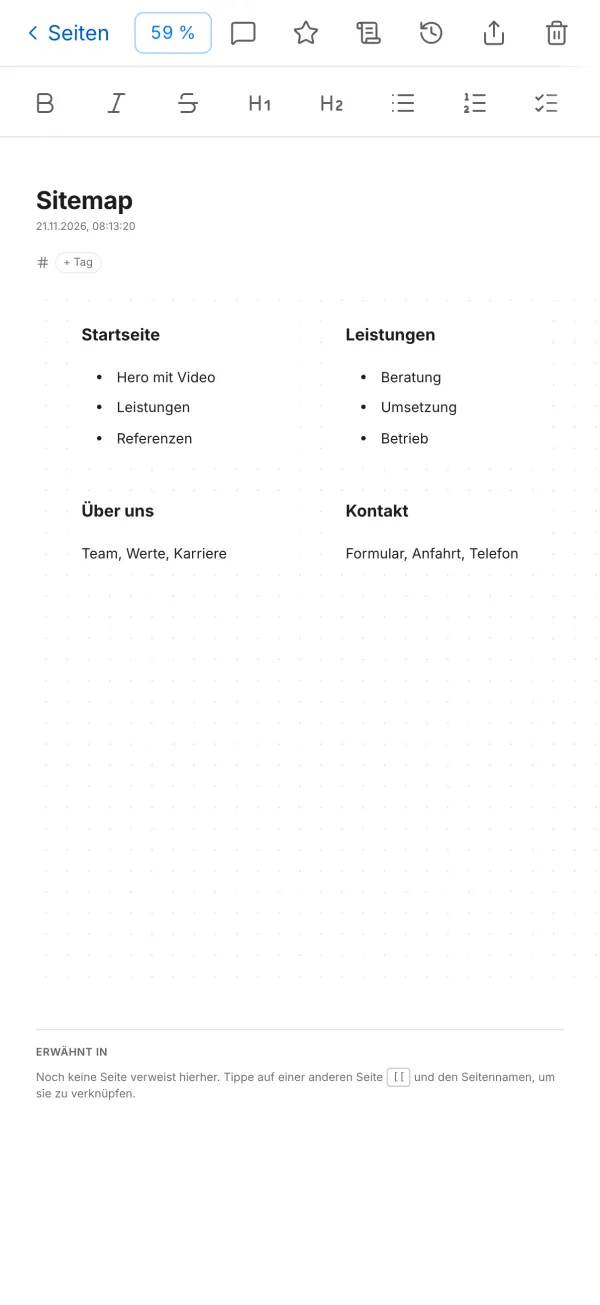
  • iPad: three columns in portrait and landscape, as on the Mac. Use diagrams and the canvas with your finger; pinch to zoom.
  • iPhone: one column, step by step from notebook to section to page.
  • The toolbar swipes sideways and stays reachable with the keyboard open.
  • The folder comes from the Files app (iCloud Drive or another provider with Files integration).

Free and Pro

What Free includes and what Pro unlocks.

flowNotes is free to use. Free includes the editor, tasks, daily notes, search, quick capture, sharing and encryption, with these limits:

  • 3 notebooks
  • Attachments up to 10 MB per file
  • Versions from the last 14 days
  • 1 diagram and 1 canvas page per notebook

Pro lifts the limits and adds the board, maps, text recognition in images, PDFs and handwriting, and transcription. Without Pro everything stays readable and exportable. Enter a licence key under Settings › Pro; it applies to all devices of your vault.

Troubleshooting

Common questions when something does not work as expected.

Another device does not show my changes

Check the status at the bottom left on both devices. If it says “waiting for files”, the cloud client is still downloading. With iCloud, it helps to mark the flowNotes folder as “Keep downloaded” in Finder or the Files app.

My notebook is missing on the second device

Both devices must use the same folder. The chosen folder is shown at the bottom of the sidebar.

Touch ID or Face ID asks for the passphrase

On a new device, after attaching a copied folder or when Touch ID / Face ID was turned off, unlock once with the passphrase. You can then turn it back on under Settings › Security.

Contact

Questions and bug reports are welcome at flowswitch Solutions.